Get paid online with Stripe and PayPal
With online payments switched on, your client pays an invoice straight from the email, by card or PayPal, and Billr marks it paid. For clients who pay by bank, you add payment instructions or a QR code.
Updated

How online payments work
Go to Settings, Payment Options. Under Online Payment you find Stripe and PayPal, under Offline Payment your bank details: Bank Transfer and QR Payment. Each one shows whether it is On or Off.
Only the Owner of the team can change these settings, because the money goes to the Owner's own Stripe or PayPal account.
Once Stripe or PayPal is on, the email with your invoice gets a pay button. Your client pays on a payment page, and as soon as Stripe or PayPal confirms the payment, Billr sets the invoice to Paid and you get a notification. Billr takes 0% of the payment.
Accept card payments with Stripe
- Go to Settings, Payment Options, Stripe.
- Switch on Stripe. Billr takes you to Stripe, where you fill in your details.
- Back in Billr, the Connection Status block shows three steps: Details Submitted, Charges Enabled and Payouts Enabled.
- Not finished at Stripe yet? Choose Continue Setup to pick up where you left off.
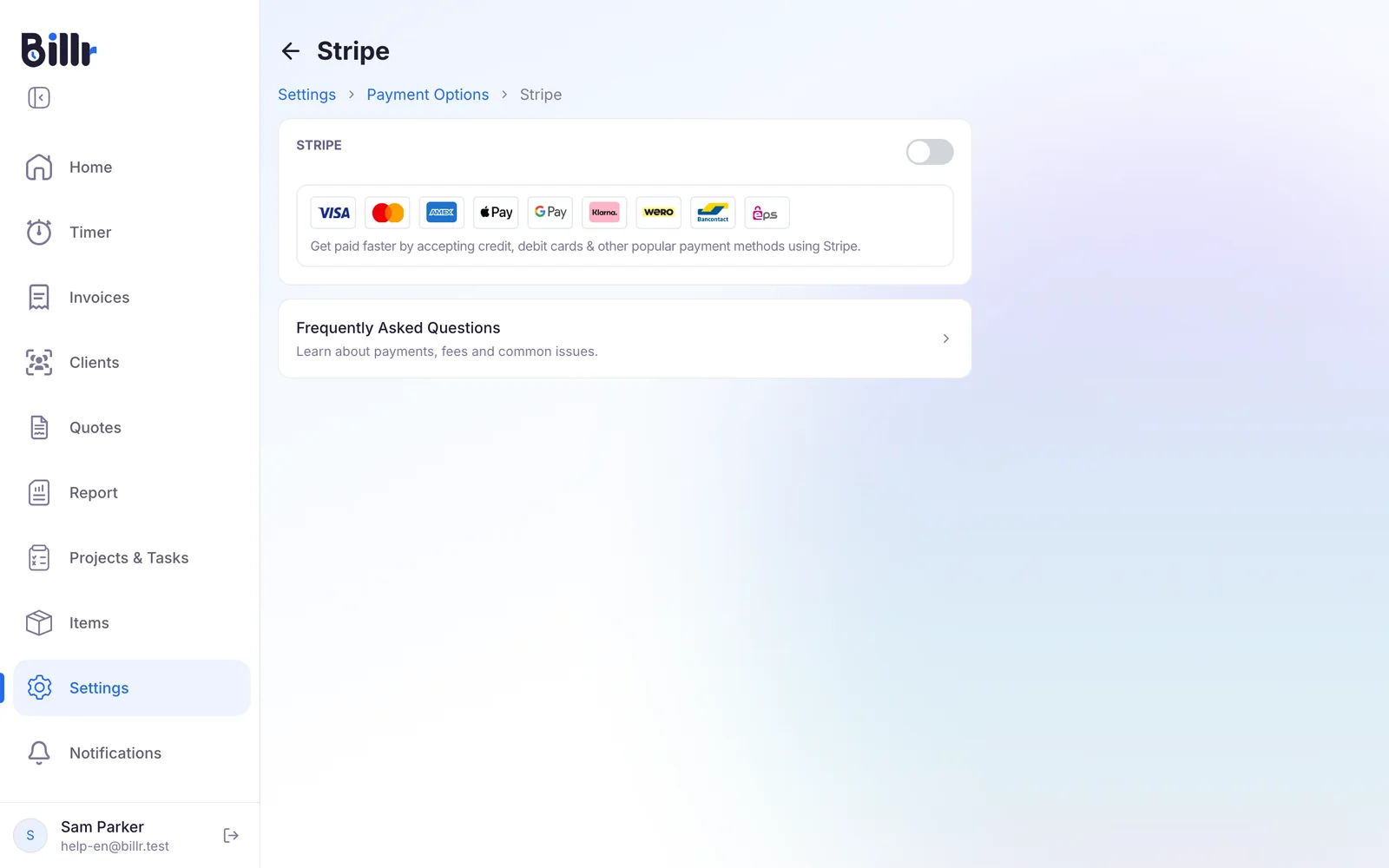
Your client can pay by card as soon as Charges Enabled is green. Stripe usually reviews an account within 1 or 2 business days. Payouts Enabled turns green once you have added a bank account at Stripe; from then on Stripe pays out to you.
Disconnect Stripe removes the link with your Stripe account. Payment links on invoices you already sent stop working.
Accept PayPal
- Go to Settings, Payment Options, PayPal.
- Choose PayPal Email and fill in the address of the PayPal account that should receive the money.
- Save.
Your client then gets the option to pay with PayPal. Use exactly the address of the receiving account, or Billr cannot match the payment to the invoice. More about this is in the questions below.
Bank transfer and payment QR codes
Not every client pays online. For them you put your bank details on the invoice.
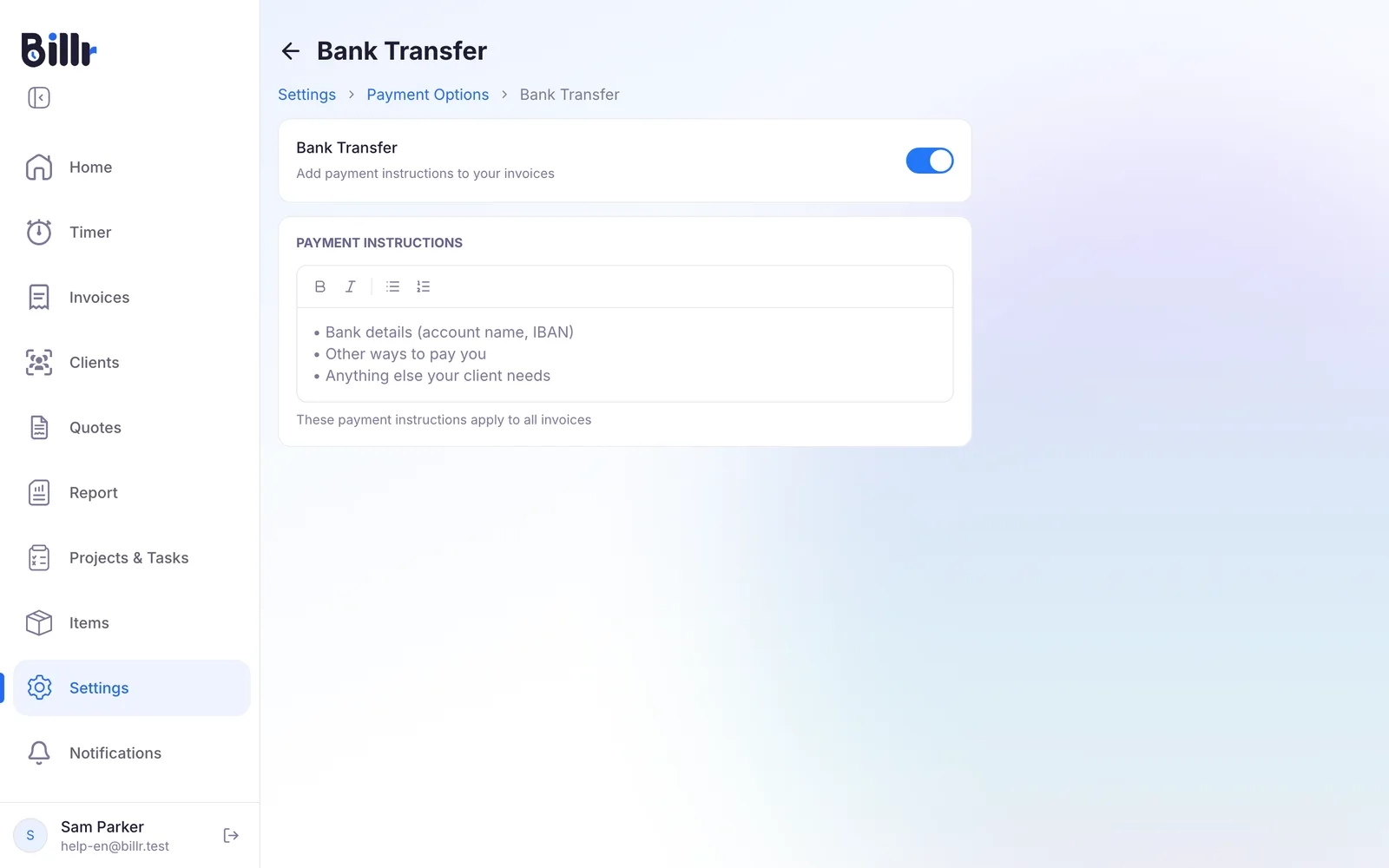
- Bank Transfer. Switch it on and write your Payment Instructions: your bank account name and IBAN, other ways to pay you, and anything else your client needs. These instructions apply to all invoices.
- QR Payment. Switch it on and fill in your details. Billr puts a QR code on the invoice in the right format for your client's country, which your client scans in their banking app.
Want Billr to follow up an invoice that stays unpaid? Read Reminders and payment reminders. Sending the invoice itself is in Create and send invoices.
Frequently asked questions
How do I connect Stripe?
Go to Settings, Payment Options, Stripe and start the setup. Only the team owner can do this. You fill in the form at Stripe, which usually reviews an account within one or two business days.
The Connection Status block then shows three steps:
Details Submitted.
Charges Enabled, which has to be green before a client can pay by card.
Payouts Enabled, which only turns on once you have added a bank account at Stripe.
Disconnecting kills the payment links on existing invoices.
How do I accept PayPal?
Under Settings, Payment Options, PayPal you enter your own PayPal email address. A Pay with PayPal button then appears on your invoices. The address has to match the account that receives the money, otherwise Billr will not accept the payment confirmation. If you do not have a PayPal account yet, PayPal creates one for that address the first time a client pays.
What does Billr charge on a payment?
Nothing. Billr takes 0% of your invoices; the money goes straight from your client to your own Stripe or PayPal account. Stripe and PayPal charge their own transaction fee, which depends on your country and the payment method. You will find those rates in your Stripe or PayPal account, not in Billr.
When do I get the money from an online payment?
The payment lands in your own Stripe or PayPal account, not in an account belonging to Billr. From there it follows the payout schedule of that provider and the bank account you registered with them. In Stripe, payouts only start once the Payouts Enabled step is green. Billr marks the invoice paid as soon as the provider confirms the payment.
Can my invoice carry a payment QR code?
Yes. Switch on QR Payment under Settings, Payment Options and fill in your details.
Account name and IBAN for a bank QR.
A PIX key for Brazil.
A UPI ID for India.
Billr picks the right format from your client's country: SEPA, Swiss QR bill, Czech SPD, Hungarian QR, PIX or UPI. The client scans it in their banking app. If you would rather just print your bank details, use Bank Transfer with your own payment instructions.
My client says the payment link does not work. What now?
Check three things.
Is the invoice cancelled? That switches the link off, and Reactivate Invoice brings it back.
Is your Stripe setup finished? Charges Enabled has to be green before a card payment can go through.
Is the link stale? A checkout session expires after about a day, so use Regenerate Payment Link.
For PayPal, check that the email address under Payment Options is the address that receives the money.