Reminders and payment reminders
Billr has two kinds of reminders. A reminder tells you and your team that an invoice is overdue; a payment reminder emails your client about an unpaid invoice, on the days you choose.
Updated

Two kinds of reminders
Both live under Settings, Invoice Reminders, and only an Owner or Admin can change them. The roles are explained in Teams.
| Reminder | Payment reminder | |
|---|---|---|
| Goes to | You and your team | Your client |
| About | Invoices that are overdue | An invoice that is still open |
| How | A notification, or an email to the Owner | An email |
| Plan | Every plan | A paid plan |
Get a reminder about overdue invoices
- Go to Settings, Invoice Reminders.
- Switch on Overdue invoice reminder.
- Turn the wheels to the time you want to hear about it.
- Choose Save.
From then on Billr checks your invoices once a day at that time. If one is Overdue, you get a notification on the devices where you allow notifications from Billr. Each team member only hears about the invoices they can see. If nobody in the team has notifications on, Billr emails the Owner instead.
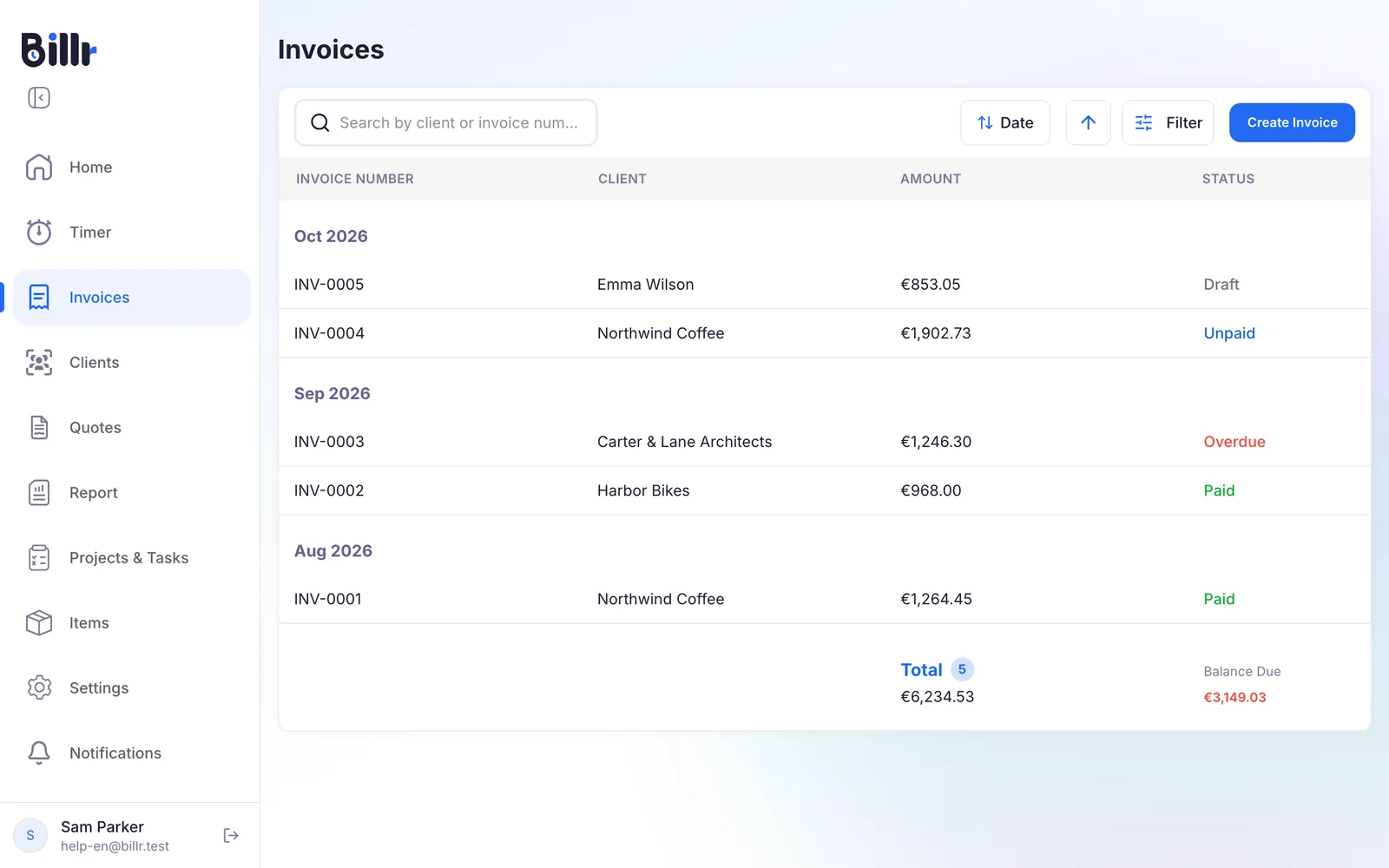
Send payment reminders to clients automatically
- On the same screen, switch on Payment reminders to clients.
- Fill in up to three moments: First moment, Second moment and Third moment. Each is a number of days from the due date, from -30 to 90. A minus means before: -2 is two days before the due date. Leave a moment empty to skip it.
- Under Send at, choose the time of day, in steps of a quarter of an hour.
- Choose Save.
Billr suggests -2, 2 and 9: a friendly heads-up two days before the due date, and two follow-ups after it. Billr sends each moment once per invoice, in your own time zone, and only for invoices that have been sent, are not paid or cancelled and have a due date.
A few things to know:
- The email goes to the client's first email address. A client without an email address gets nothing, and Owners and Admins get a notification about it.
- A moment that falls on or before the day you sent the invoice is skipped, so your client never gets a reminder right after the invoice itself.
- Moments that passed before you switched payment reminders on are not sent afterwards.
- The email shows the invoice number, the amount, the due date and your payment instructions, in the language of your invoices. With online payments on, it has a pay button.
- Every reminder sent shows up in the invoice's Activity Log as Reminder sent.
Payment reminders are always sent through Billr, with your business name as the sender ("your business name via Billr"). When your client replies, the reply goes to the email address in your business details. Your invoices themselves keep going the way you chose under Email Settings.
Switch payment reminders off for a client or invoice
Have a special arrangement with a client? You can stop the automatic reminders without switching them off for everyone.
- For a client: edit the client and switch off Payment reminders. Billr then sends this client no automatic reminders. See Clients.
- For one invoice: open the invoice, choose More Options and switch off Automatic reminders. If the client is already switched off, it says Off for this client.
Send a reminder by hand
- Open an invoice that is unpaid and has a due date.
- Choose More Options, then Send reminder.
Billr emails your client the same reminder straight away. Like the automatic ones, this is for Owners and Admins on a paid plan, and it also works when automatic reminders are off for that client or invoice. You can do this once per invoice per day. A reminder you send by hand counts: an automatic moment on the same day or the day after is skipped, so your client does not hear from you twice. How the invoice got to this point is in Create and send invoices.