Manage your clients
Every invoice, quote and time entry in Billr belongs to a client. Add a client once and Billr fills in the name, address and hourly rate for you from then on.
Updated

Add a client
- Go to Clients and choose Add Client. You find the same button under Quick Actions on Home.
- Fill in the Full Name. That is the only required field.
- Add an Email Address if you want to email invoices and quotes to this client. With Add you give a client more than one address or phone number.
- Fill in the Company Name, the Tax ID and the address when you need them on the invoice.
- Choose Save Client.
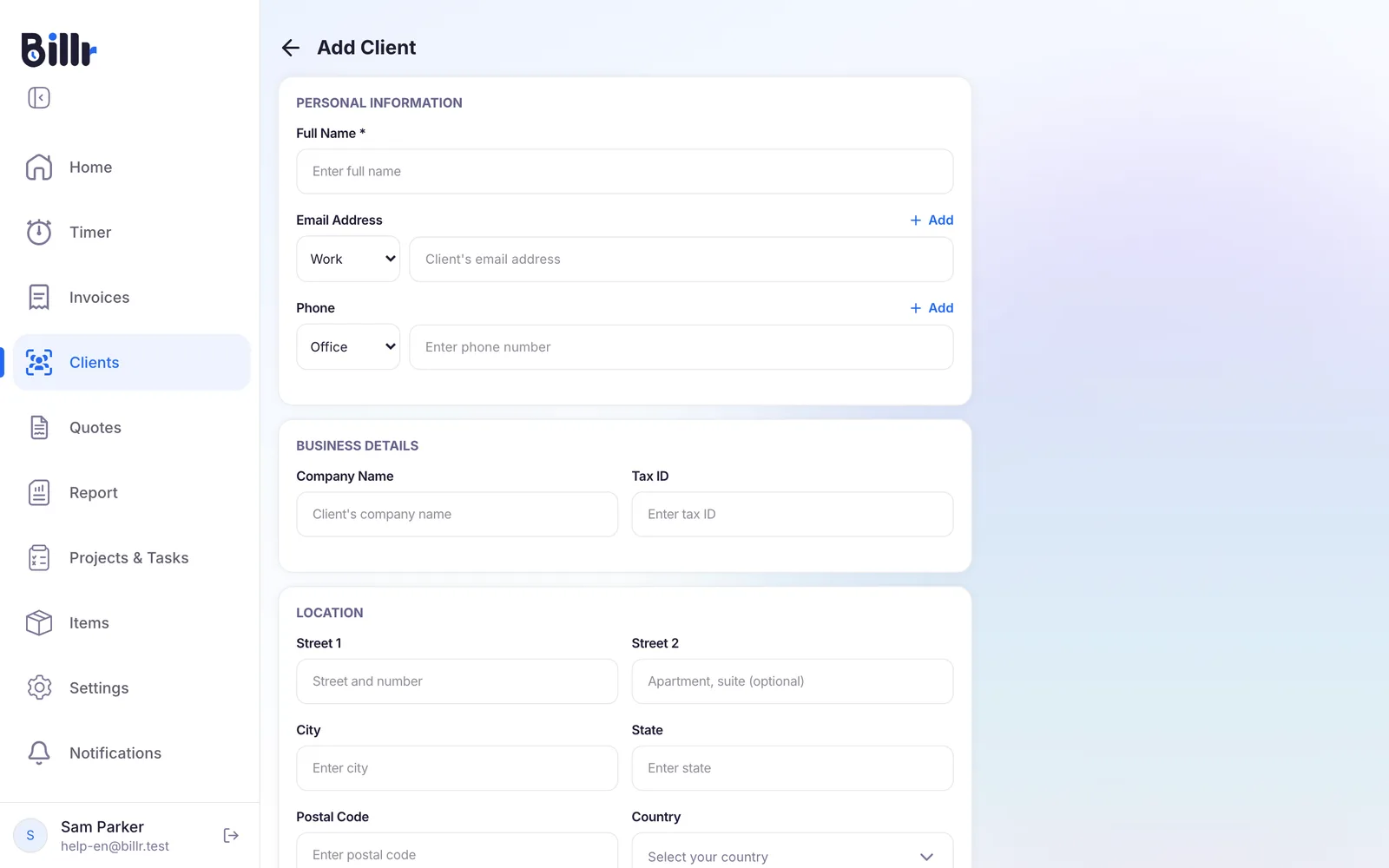
Further down the form you set a Default Hourly Rate, a Client tag, a Rating and Notes. Billr has no file import, so you add clients one by one.
Set a default hourly rate
With a Default Hourly Rate, every hour you track for this client gets a value without you typing it. A project can have its own rate, and that rate goes first. How it works on the timer is in Track time with the timer.
Owners and Admins also see Payment reminders on the client. Switch it off for a client with a special arrangement, and Billr sends that client no automatic payment reminders. More in Reminders and payment reminders.
Group clients with tags
A tag groups your clients, for example by type of work or by status. In the client list you search and filter by tag.
- Go to Settings, More Options and choose Client Tags.
- Billr starts with four default tags. To make your own, choose Customize.
- Choose Add Tag, give the tag a name and a colour, and save it.
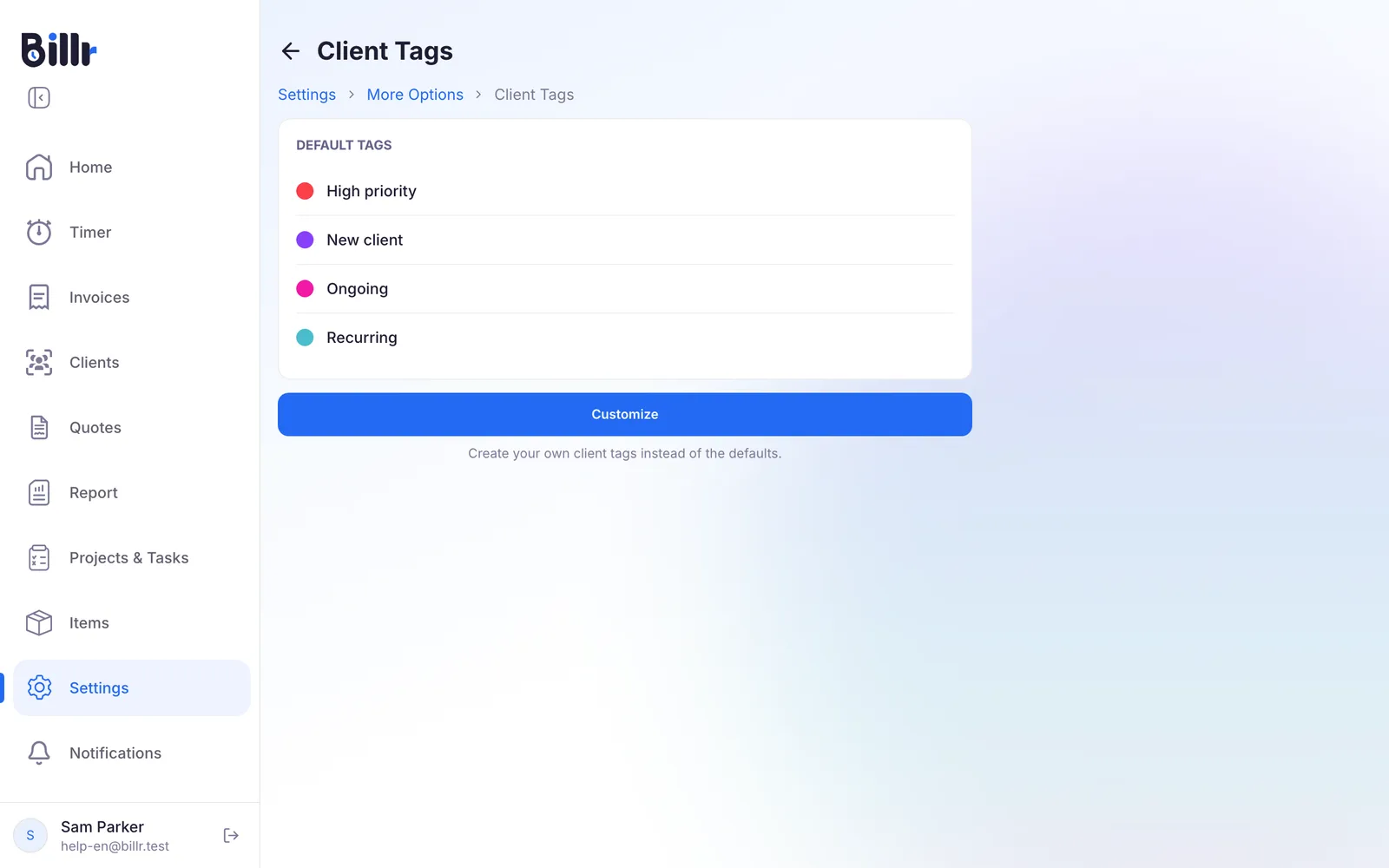
Deleting a tag that clients are using asks you to move those clients to another tag first. Back to Default brings back the default tags.
See what a client owes you
Open a client from the list. Under Summary you see the Hours Tracked, the Billable amount of those hours and the Unpaid Invoices, with their number and amount. From the same screen you start the timer for this client, create a New Invoice or Add Project.
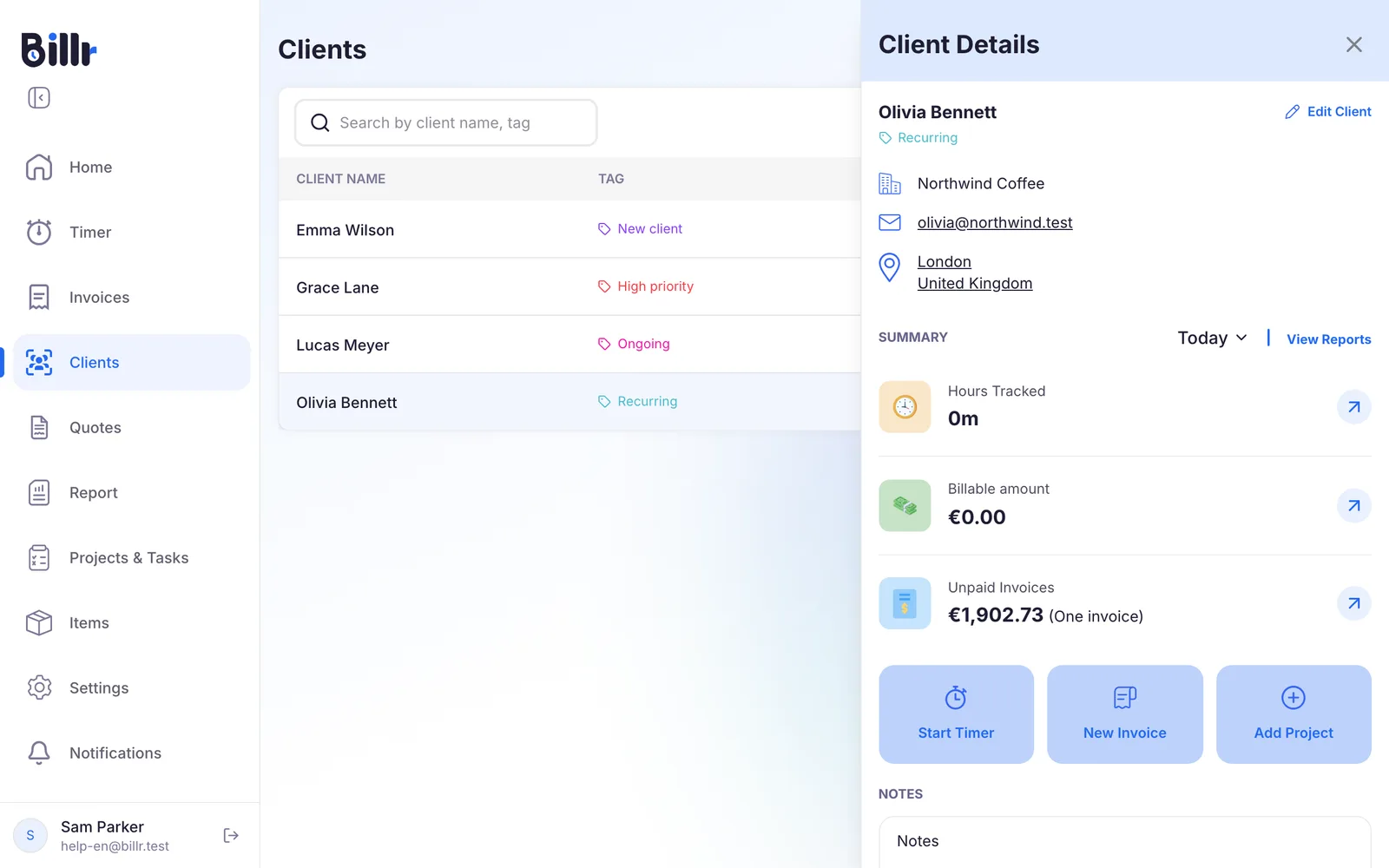
To see who is behind, sort the client list by Balance Due, Total Paid or Total Invoice. For totals over a period, use the Report.
Edit or delete a client
Open the client and choose Edit Client to change the details.
On that screen you also find Delete Client. Before you confirm, Billr shows how many invoices, projects and time entries are linked to the client; they keep the client's name as plain text. The client goes to the Trash, where you can restore it for 21 days.
To organise the work for a client, read Track projects and tasks.
Frequently asked questions
What do I fill in for a client?
Under Clients, Add Client only the name is required. Add an email address if you want to mail invoices to the client, plus the address and tax ID, which Billr prints on the invoice. A default hourly rate makes your time entries calculate automatically, and a tag, rating and notes help you keep the list organised.
What are client tags for?
Tags group your clients, for example by type of work or status, and you can search and filter the client list by them. Billr ships with default tags; choose Customize under Settings, More Options, Client Tags to make your own with a colour of your choice. Deleting a tag that is in use asks you to move those clients to another tag first.
Where do I see what a client owes me?
Open the client and look at the Summary block: hours tracked, billable amount, and unpaid invoices with the number and the amount. From there you also start a timer, create an invoice or add a project for this client. In the client list you can sort by Balance Due, Total Paid or Total Invoice to see who is behind.
Can I import my clients from another tool?
No, Billr has no file import. You add clients by hand under Clients, Add Client. Only the name is required, so you can add a client in seconds and fill in the address, tax ID and default hourly rate later when you need them on an invoice.
Which hourly rate does a time entry use?
Billr takes the project rate if the project has one, otherwise the client's default hourly rate, otherwise zero. Set the client rate under Clients in Default Hourly Rate, and the project rate on the project itself. The rate is stored with each entry, so raising a rate later does not rewrite what you already earned on older entries.