Track projects and tasks
A project groups the work you do for one client. Track projects and tasks in Billr to see how many hours and how much of the budget you have used, task by task.
Updated
Create a project
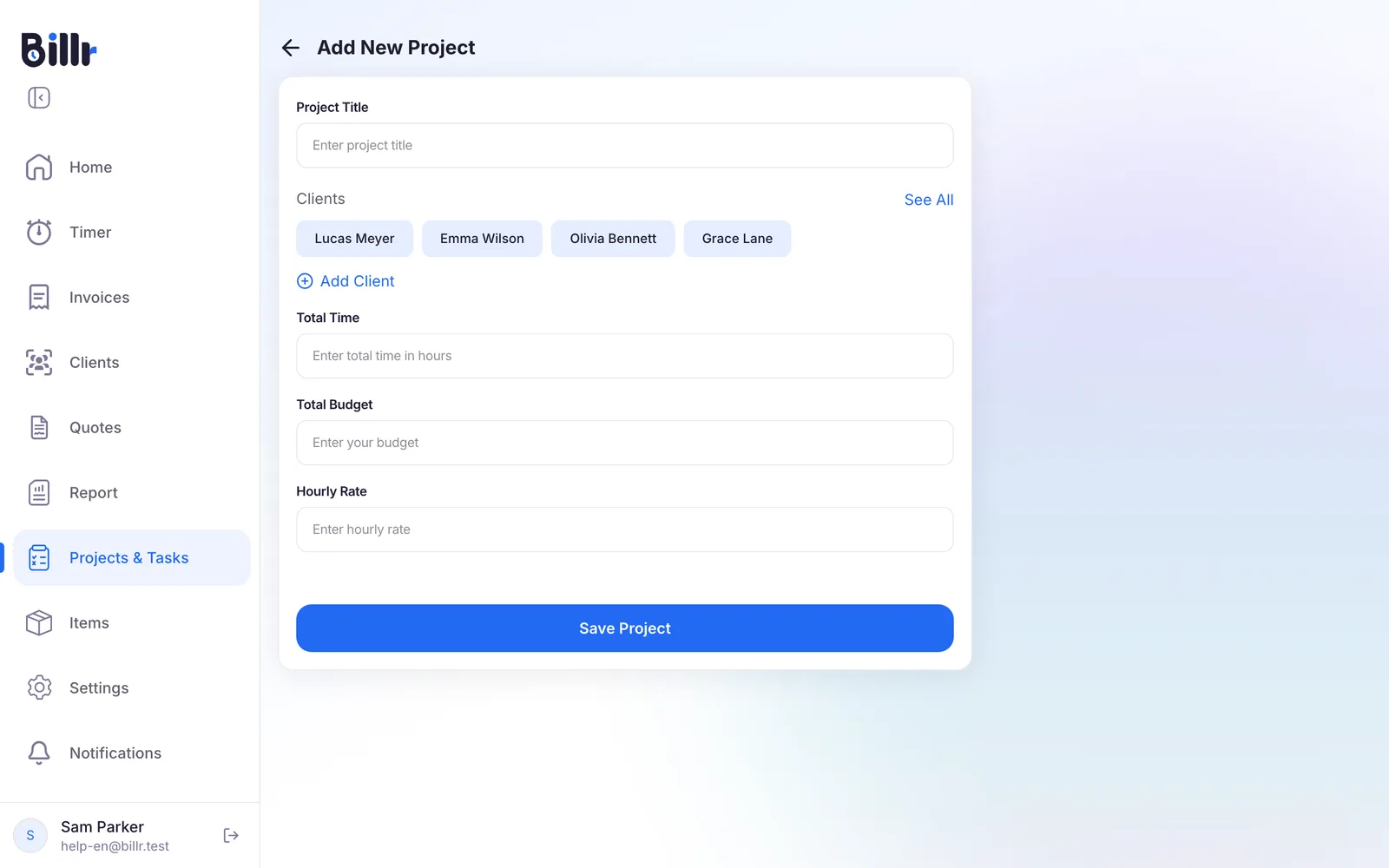
- Go to Projects & Tasks and choose Add Project.
- Enter a Project Title. That is all Billr needs.
- Pick the client under Clients, or create one with Add Client.
- Fill in the Total Time you expect in hours, a Total Budget and an Hourly Rate when you have them.
- Choose Save Project.
The project rate goes before the client's default hourly rate on every time entry for this project. On the free plan you have 1 active project, on Starter 3, and from Pro there is no limit.
Follow hours and budget
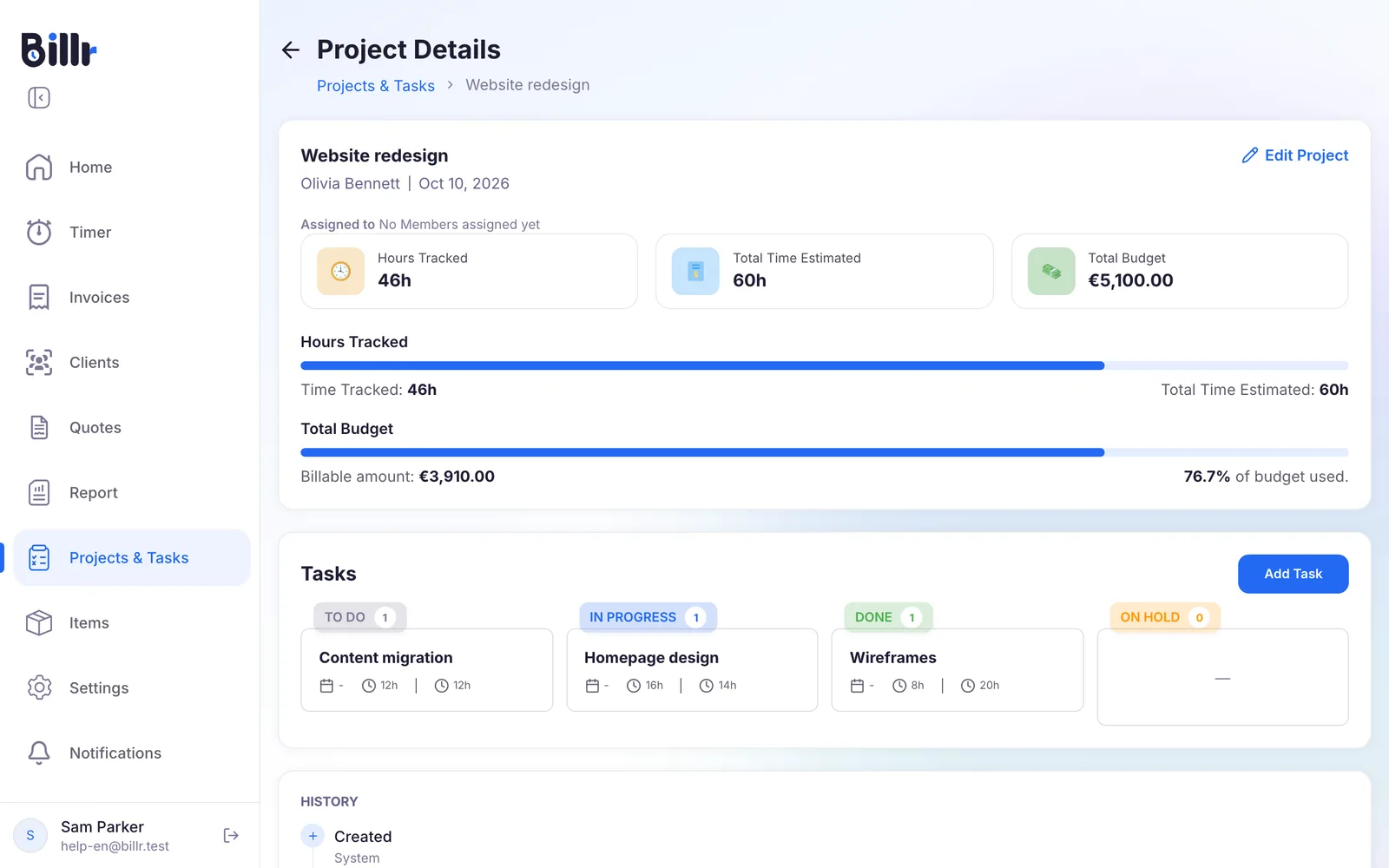
Open a project to see its Project Details. At the top you see the Hours Tracked, the Total Time Estimated and the Total Budget. The two bars below compare them:
- Hours Tracked shows the time tracked against your estimated time.
- Total Budget adds up the Billable amount of all time entries for this project and shows how much of the budget you have used.
Both use the rate that applied when each hour was tracked, so changing a rate later does not rewrite past work. To change the project, choose Edit Project.
Plan the work in tasks
Under Tasks the project's tasks are grouped by status.
- Choose Add Task.
- Enter a Task Title, then pick a Status and fill in the Time Estimated and a Due Date if you want.
- Choose Save Task.
The project's own status follows from its tasks:
| Project status | When |
|---|---|
| Not Started | The project has no tasks yet, or none of its tasks has started. |
| In Progress | At least one task is in progress, or some tasks are completed while others have not started. |
| Completed | Every task is in a completed status. |
Log time on a task
- Open the task and choose Log Time.
- The timer opens with this task already picked. Enter the hours by hand, or switch to the timer and start it.
Every entry appears under Logged Times on the task. From the task you can also choose New Invoice to invoice just this task's hours, instead of everything the client has open. How the hours become lines is in Create and send invoices.
Use your own task statuses
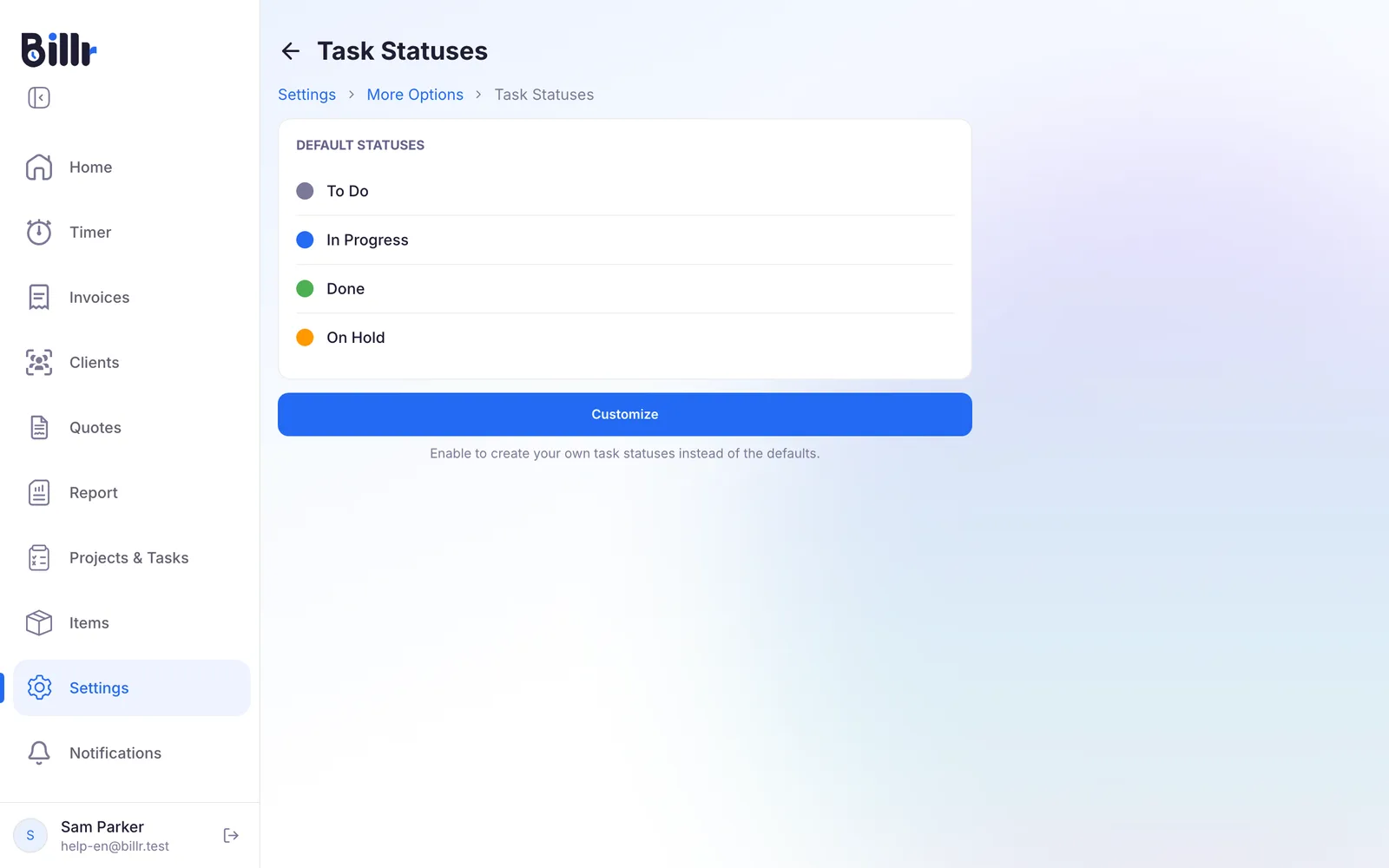
Billr starts with four statuses: To Do, In Progress, Done and On Hold.
- Go to Settings, More Options and choose Task Statuses.
- Choose Customize to create your own statuses, each with a name, a colour and a category: Not Started, In Progress or Completed. The category decides how the status counts towards the project status.
Deleting a status that tasks are using asks you to move those tasks to another status first.
In a team, Owners and Admins see every project. Members see only the projects assigned to them. You assign them under Edit Project, in Team members; see Work together in a team.
Deleting a project or a task sends it to the Trash, where you can restore it for 21 days.
Frequently asked questions
How do I create a project?
Go to Projects and tap Add Project. A title is enough; you can also link a client, set an hourly rate for the project, a total budget and an estimated number of hours. The project rate takes priority over the client rate on time entries. Free allows one active project, Starter three, and Pro and up unlimited.
How does Billr track a project budget?
Enter a Total Budget on the project. On the project screen Billr adds up the billable amount of all time entries for that project and shows what share of the budget you have used. Tracked time is compared with your estimated hours in the same way. Both use the rate that applied when each entry was made, so past work is not restated when you change a rate.
Can I use my own task statuses?
The default statuses are To Do, In Progress, Done and On Hold. Choose Customize under Settings, More Options, Task Statuses and you can create your own with a colour and a category: Not Started, In Progress or Completed. That category decides how the status counts towards the project status. Deleting a status that tasks are using asks you to reassign those tasks first.
How do I track time on one task?
Open the task and tap Log Time. You can run the timer against this task or enter the hours by hand; both land in the Logged Times list on the task. On the timer screen you can also pick a project and a task before you start. That makes it possible to invoice a single task's hours instead of everything the client has open.