Work together in a team
In a team you share clients, items and invoices, and everyone tracks their own time. Invite team members, give each one a role and see who changed what.
Updated

What you need for a team
Every Billr account belongs to a team, even when you work alone: then it is a team of one. To invite others you need a team plan:
| Plan | Team members |
|---|---|
| Crew | up to 5 |
| Team | up to 15 |
| Business | up to 50 |
The Team screen shows how many seats are in use, for example 1/15 seats. The Owner counts as one of them. How to buy or change a plan is in Plans and billing.
Invite a team member
- Go to Settings and choose Team.
- Choose Invite member.
- Enter the email address and choose the Role: Admin or Member.
- Choose Send invite.
The person you invited gets an email with a link to join your team. Through that link they sign in, or sign up if they have no Billr account yet, and choose Accept invitation. They have to use exactly the email address you invited.
An invitation is valid for 7 days. Until it is accepted, it is listed under Pending invitations, with how long it has left. Resend starts a fresh 7 days; Revoke withdraws it. The Owner and the Admins can invite.
The three roles
| Role | What this person can do |
|---|---|
| Owner | Everything. Buys and manages the plan, is the only one who opens the audit log and the Stripe settings, and can change any role or remove anyone. There is one Owner per team. |
| Admin | Manages the team and invites people. Sees their own time entries and those of the team members who report to them. Can make a Member an Admin, and remove a Member. |
| Member | Sees and creates their own work. Sees only the projects they are assigned to. |
Decide who sees what
Clients, items and invoices belong to the whole team. Two things are more personal:
- Projects. The Owner and the Admins see every project. A Member sees only the projects assigned to them. You assign team members on the project itself, see Projects and tasks.
- Time entries. These stay with the person who tracked them. A Member sees their own, an Admin sees theirs plus those of the people reporting to them, and the Owner sees everything.
Who reports to which Admin is up to the Owner: open the menu next to a Member and choose Assign to admin. In the report the Owner and Admins then choose whose work they want to see.
Change a role, remove someone or hand over the team
Open the menu next to a team member on the Team screen.
- Change role makes a Member an Admin, or an Admin a Member. Only the Owner can make an Admin a Member again.
- Remove member takes them out of the team. They lose access to the team's data straight away.
- Transfer ownership makes someone else the Owner. You become an Admin yourself, and the new Owner manages the plan from then on.
When an Admin who still has team members reporting to them changes role or is removed, Billr first asks where those team members should report.
See who changed what in the audit log
- Go to Settings and choose Audit Log.
- Search, or choose Filter to narrow the list by person, role, record type, invoice number, client or date range.
- Choose a line to see which fields changed, from which value to which.
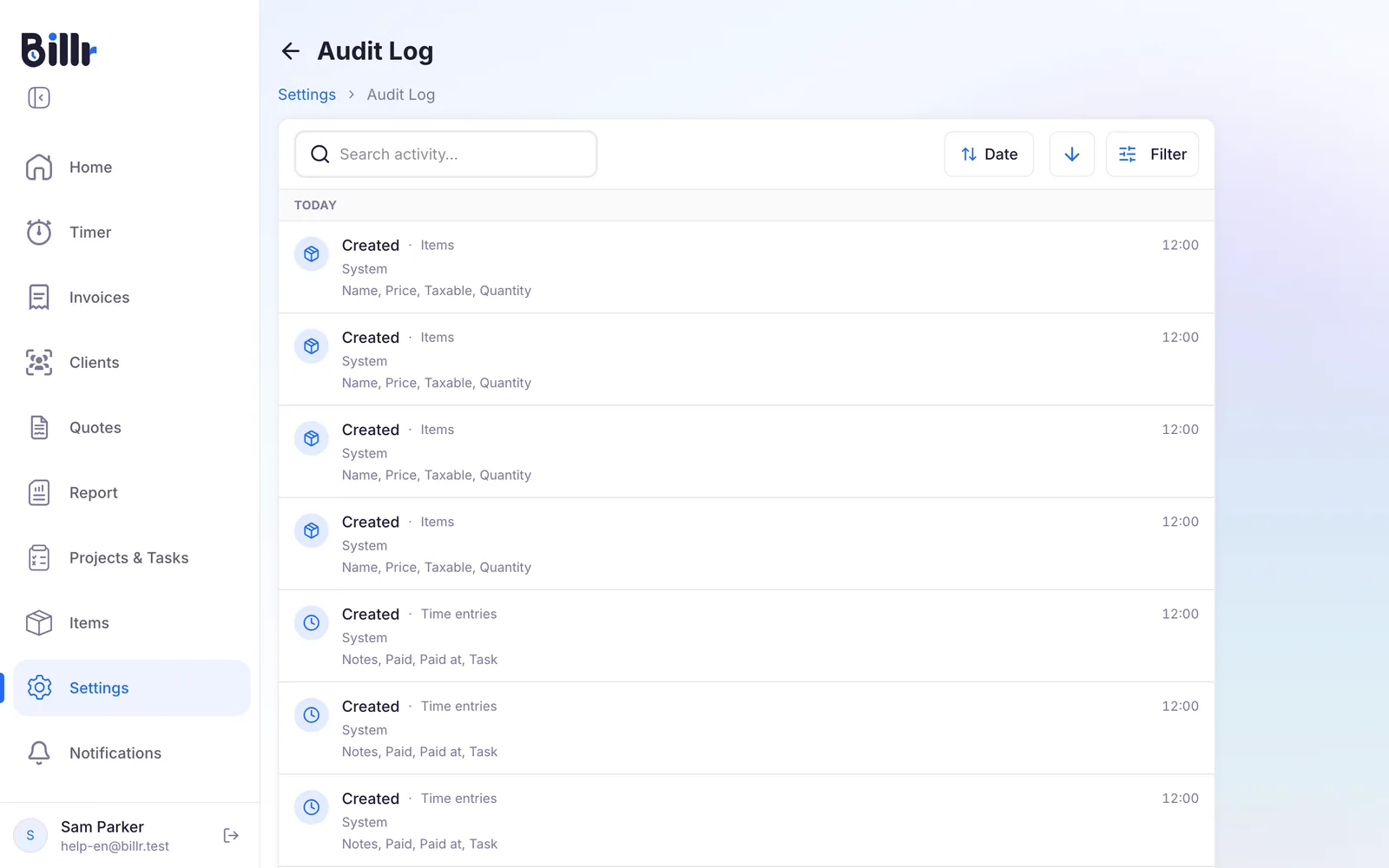
The audit log is only for the Owner, and comes with Crew, Team and Business. For a single invoice, project or client, the shorter history on the record itself is often enough.
Frequently asked questions
How do I invite someone to my team?
Go to Settings, Team and tap Invite member.
Enter their email address and pick the role.
Tap Send invite. They get an email with a link to join your team, and they can sign up with a new account through that link.
An invitation is valid for seven days. The Team screen shows how long it has left and lets you resend or revoke it, and resending starts a fresh seven days. Inviting needs Crew or higher, with 5, 15 or 50 seats depending on the plan.
What is the difference between owner, admin and member?
Three roles, from most access to least.
The owner buys and manages the plan, can remove anybody, and is the only one who reaches the audit log and the Stripe settings.
An admin manages the team, invites people and sees the data of the members reporting to them.
A member sees and creates their own work.
Change a role under Settings, Team, and use Transfer ownership to hand over the team, after which you become an admin yourself.
What do my team members see from each other?
Clients and items are shared across the whole team. The rest depends on the role. The Owner and Admins see every project; a Member sees only the projects assigned to them, which you set in Edit Project under Team members. Time entries: the Owner and Admins see everyone's, a Member sees their own. Invoices and quotes: the Owner sees all of them, an Admin sees their own plus those of the team members who report to them, and a Member sees their own. Who reports to which Admin you set under Settings, Team with Assign reporting. In the Report tab you then pick the scope, from the whole company down to one person.
How do I see who changed what?
Settings, Audit Log shows every change in the team: who, what, when, and which fields changed from which value to which. You can filter by person, role, record type, invoice number, client and date range. The audit log is for the owner and needs Crew, Team or Business. For a single record there is a shorter History block on the record itself.