See your revenue and hours in the report
The report shows what you invoiced and where your hours went, per month, quarter, year or from the very beginning. It has two tabs, the Revenue report and the Work report.
Updated

Open the report
Choose Report in the menu. At the top you switch between two tabs:
- Revenue: what you invoiced and what has been paid.
- Work: the hours you tracked, per client and per project.
The report is available from the Starter plan. On the Free plan the screen tells you which plan unlocks it; the plans are compared in Plans and billing.
Choose a period and a client
- Open the period menu and choose Month, Quarter, Year or Lifetime.
- Next to it, pick which month, quarter or year you want to see. Lifetime needs no date: it covers everything from your first invoice or time entry.
- Open All Clients and pick one client to narrow the report, or leave it on all of them.
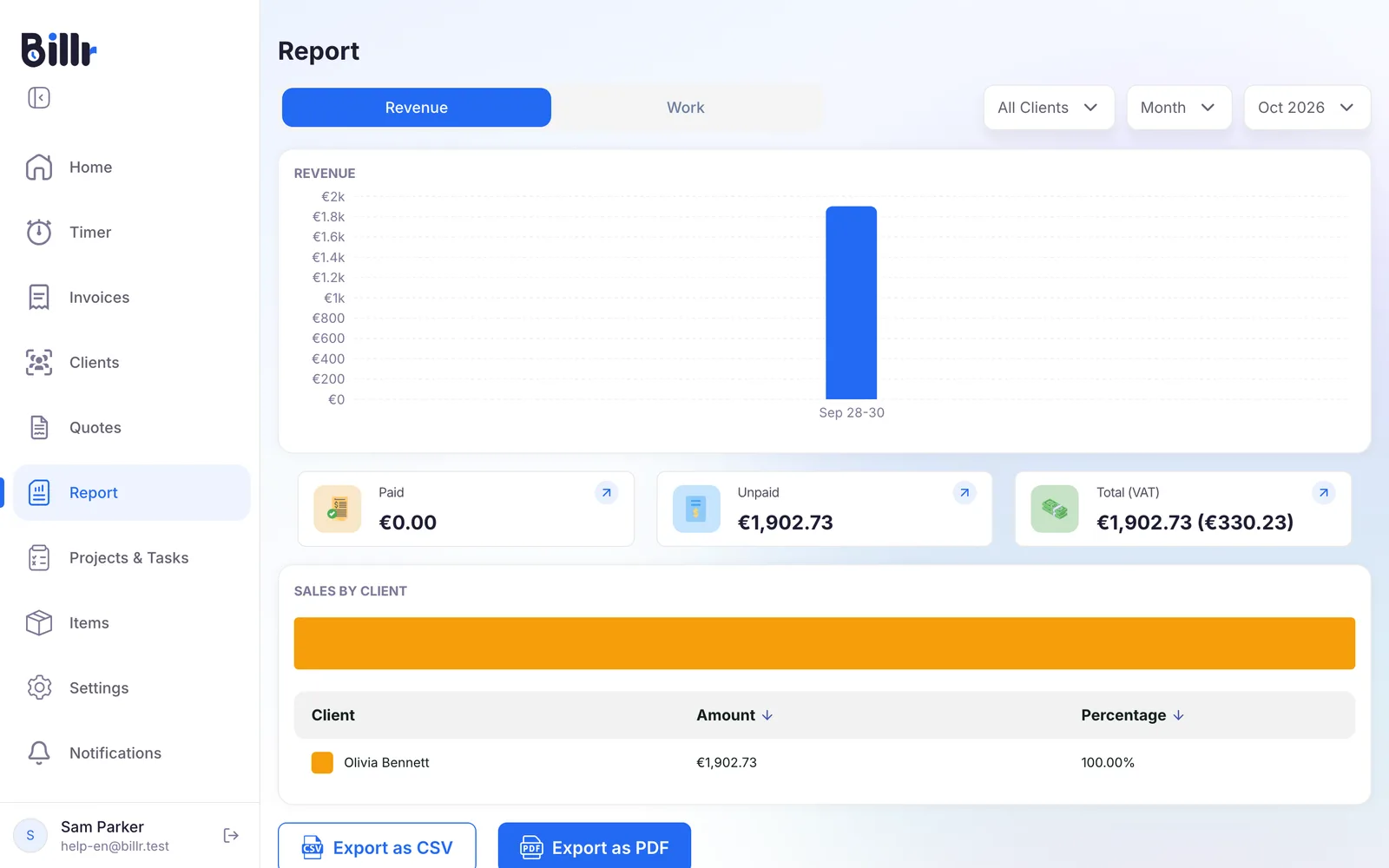
The filters apply to both tabs, so you can switch between revenue and work for the same period.
The Revenue report
The Revenue tab adds up your invoices in the chosen period:
- A chart of your revenue per week or per month.
- Three cards: Paid, Unpaid and Total. The total shows the tax amount in brackets.
- Sales by Client: each client's amount and share of the total. Sort the table by amount or by percentage.
Only sent invoices count, paid or unpaid. A draft was never sent and a cancelled invoice no longer counts, so neither appears here. An invoice paid online in a different currency than your team's currency is left out of the totals, and the report shows a warning when that happens.
The Work report
The Work tab is about time, from your time entries:
- A chart of the hours you tracked per week or per month.
- Hours Logged by Client: how your hours are spread over your clients.
- Tracked time per Project: the hours per project, with the tasks underneath.
An hour counts as billable when its time entry has an hourly rate above zero. Hours on a client or project without a rate count in your total hours, but not as billable hours. The frequently asked questions explain how this works out in the figures.
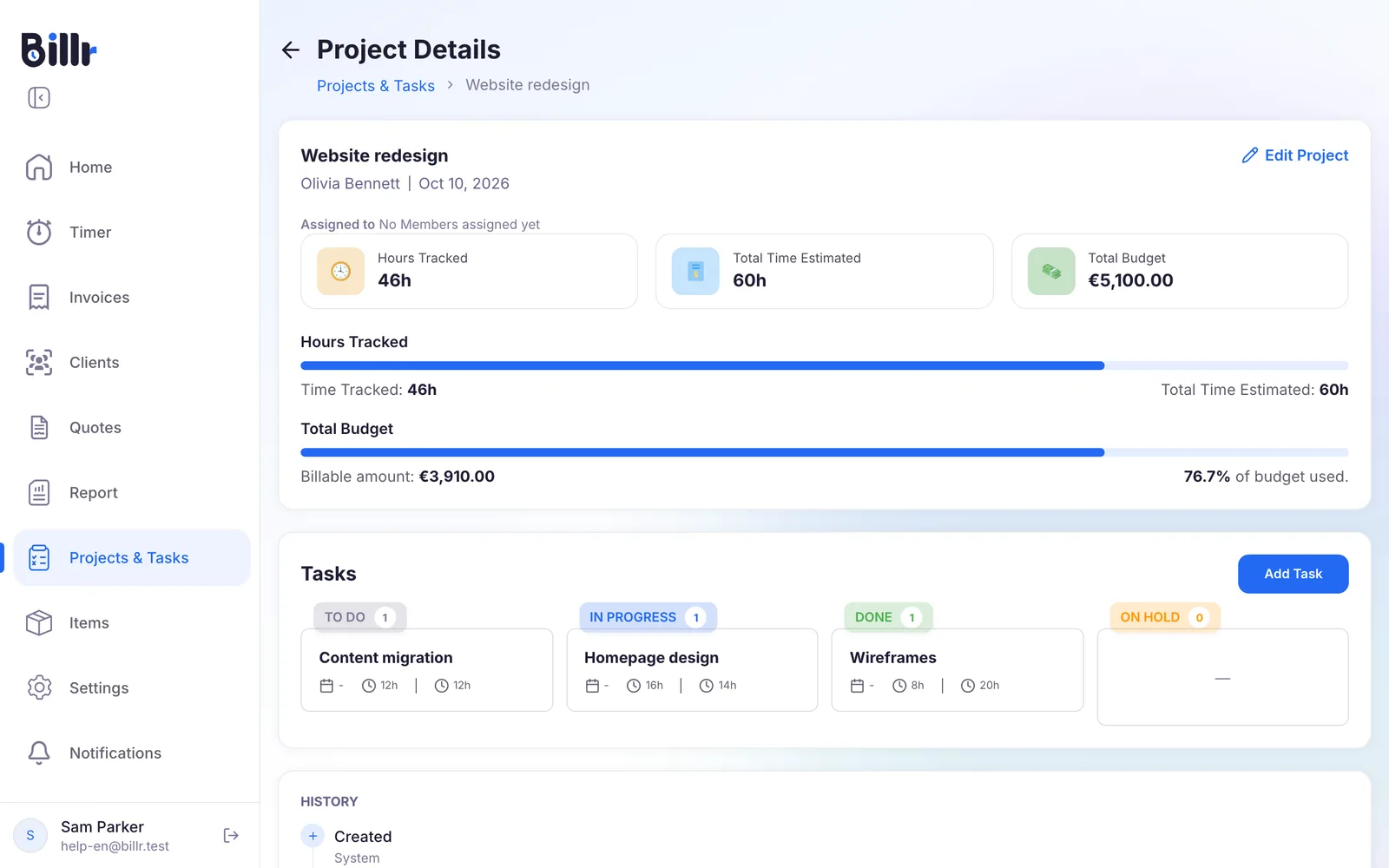
For a single project you don't need the report. Open the project: it compares the hours tracked with the estimated time, and the billable amount with the Total Budget.
Export the report as PDF or CSV
At the bottom of each tab you find Export as PDF and Export as CSV.
- Export as PDF makes a formatted report. The Revenue report adds Total billed, Total paid, Outstanding and Avg. days to pay; the Work report adds Total hours, Billable hours, Effective rate and Utilization.
- Export as CSV gives you the rows themselves, for a spreadsheet or for your accountant.
Exporting needs the Pro plan or higher. A very large export, over 50,000 rows, is refused: choose a shorter period or one client and try again.
Want to know what one client still owes you? Open the client: the summary there shows the hours, the billable amount and the unpaid invoices. More in Clients.
Report on your team
In a team, the Owner and the Admins see an extra filter for the Reporting scope. With it you choose whose work the report covers, from All company down to Only me or a single team member. Choose the people and then Apply.
A Member sees their own time entries. An Admin sees their own plus those of the team members who report to them, and the Owner sees everything.
Frequently asked questions
Which periods can I report on?
The Report tab works per Month, Quarter, Year or Lifetime, and you can step back through the periods. You can narrow it to one client. There are two views: revenue, with totals billed, paid and outstanding and the average days to pay, and work, with hours per client and per project. Reports are available from the Starter plan onwards.
Can I export a report?
Yes, with Export as PDF for a formatted report and Export as CSV for the raw rows for your spreadsheet or your accountant. Exporting needs the Pro plan or higher. A very large export, over 50,000 rows, is refused; narrow the period or pick one client and try again.
What counts as billable hours in the report?
A time entry counts as billable when its hourly rate is above zero. Hours you tracked on a client or project without a rate count in your total hours, but not as billable. Utilization is billable hours divided by total hours, and the effective rate is your billable amount divided by the hours worked. So if a client looks unprofitable, check the default hourly rate on that client or project first.
Where do I see what a client owes me?
Open the client and look at the Summary block: hours tracked, billable amount, and unpaid invoices with the number and the amount. From there you also start a timer, create an invoice or add a project for this client. In the client list you can sort by Balance Due, Total Paid or Total Invoice to see who is behind.
How does Billr track a project budget?
Enter a Total Budget on the project. On the project screen Billr adds up the billable amount of all time entries for that project and shows what share of the budget you have used. Tracked time is compared with your estimated hours in the same way. Both use the rate that applied when each entry was made, so past work is not restated when you change a rate.