Track your time with the timer
Billr tracks time with a timer you start and stop, or with hours you add by hand. Every block of time becomes a time entry, ready to invoice.
Updated
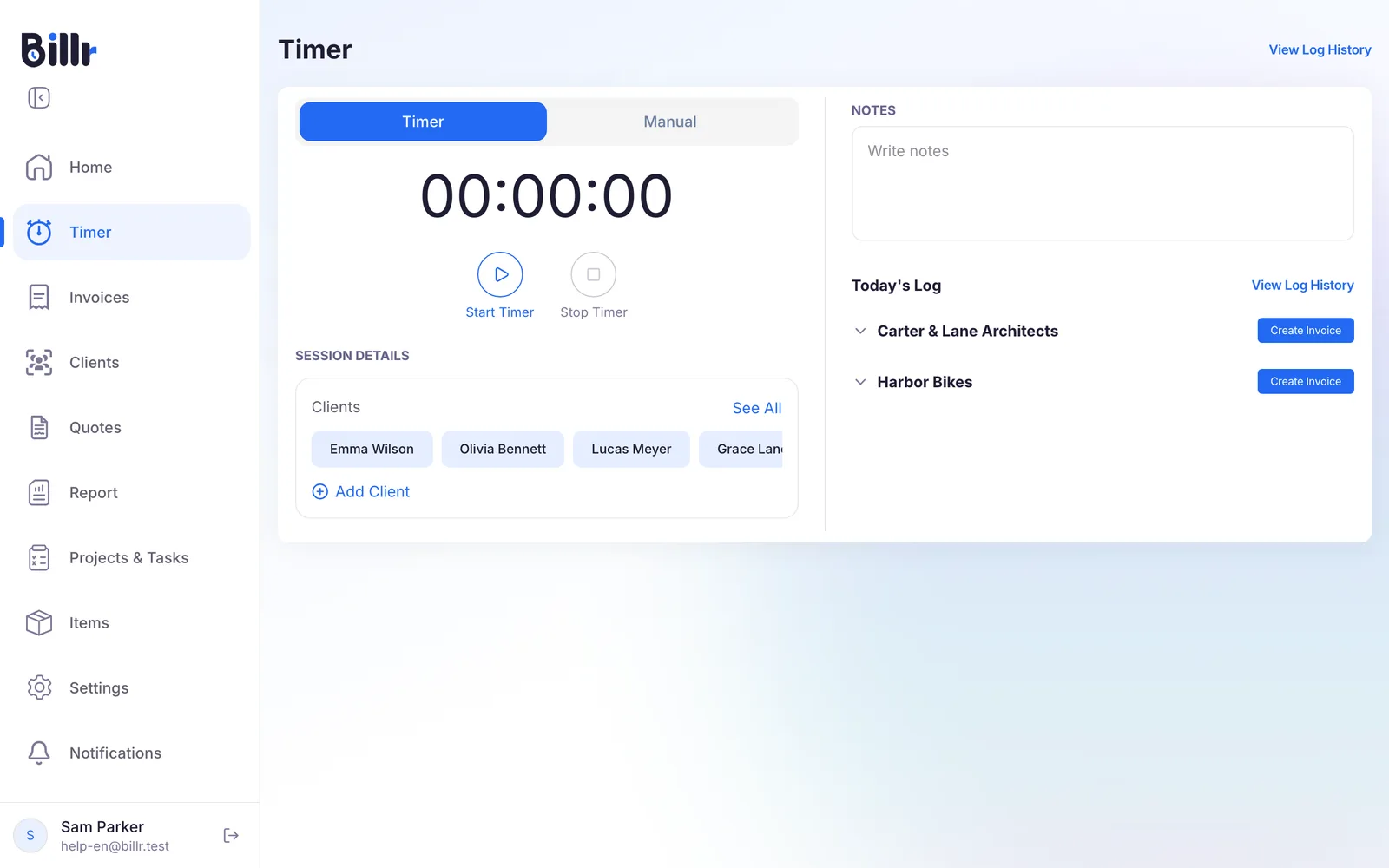
Track time with the timer
- Go to Timer in the menu.
- Under Session Details, pick the client you are working for. Add a project and a task if you want the time grouped under them. Billr does not start without a client.
- Type what you are doing under Notes, if you like.
- Choose Start Timer. Interrupted? Pause Timer holds the time and Resume Timer carries on.
- Done? Choose Stop Timer and confirm. Billr saves the time as a time entry.
Today's Log on the right shows what you tracked today, grouped by client.
Only one timer runs at a time. In a team, a timer started by a team member can only be stopped by that team member. More about working together is in Teams.
Add hours you forgot to track
Forgot to start the timer? Add the time afterwards.
- On the Timer screen, switch from Timer to Manual.
- Pick the client, and a project and task if you want.
- Set the Start Date & Time and enter the duration in hours and minutes.
- Add notes and save.
The entry ends up between your other time entries, and you invoice it the same way.
View and correct your time entries
Choose View Log History on the Timer screen. Time entry history lists all your time entries, grouped by client. Search by project name or notes, sort the list, or use Filter to see only what is Invoiced or Not Invoiced.
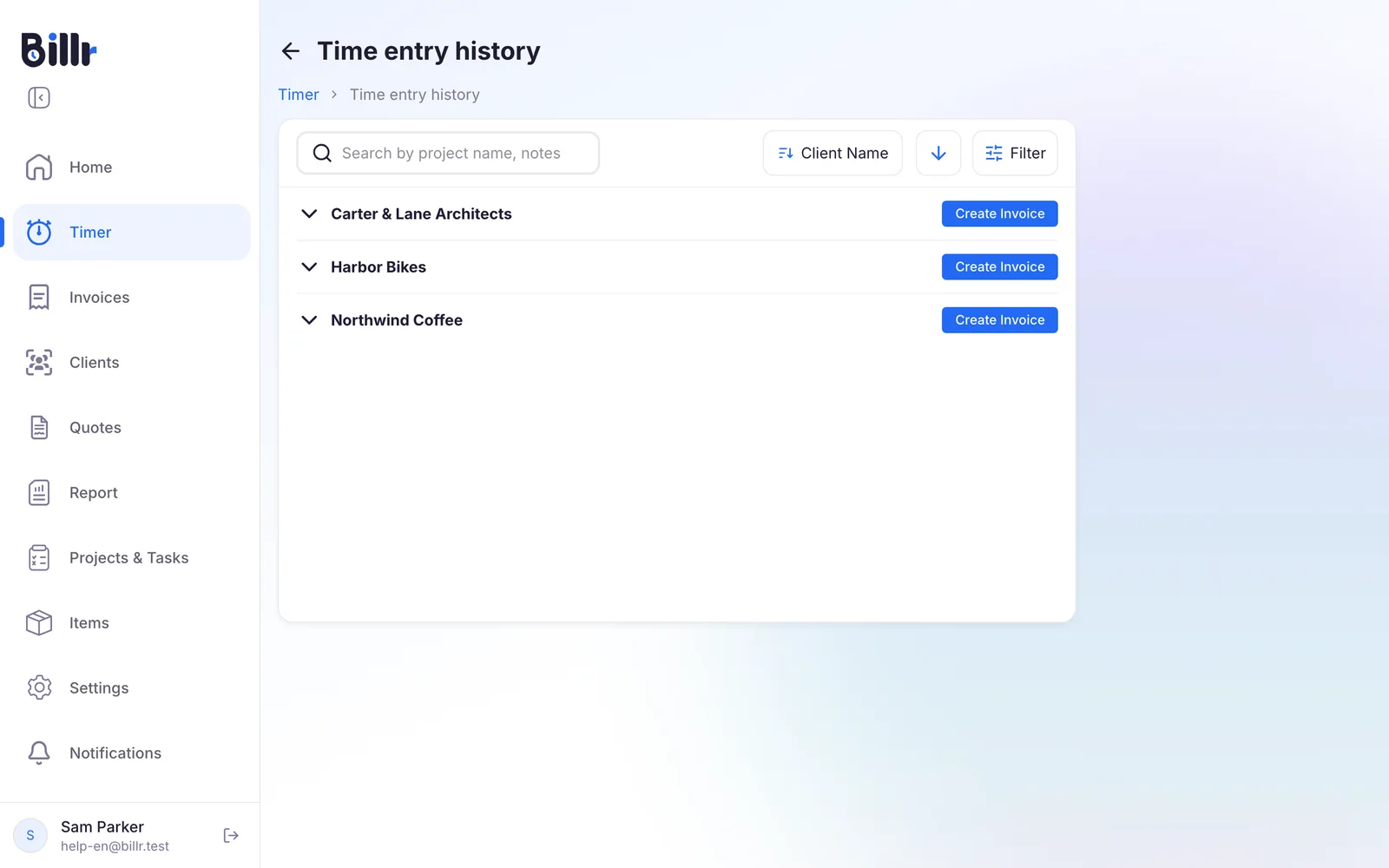
Choose an entry to open Edit Time Entry. There you change the start time, the duration, the notes, the client, the project and the task. Delete Time Entry removes it.
An entry that has been invoiced is locked. Billr names the invoice it belongs to, so you can see why.
Which rate an hour gets
A time entry takes its hourly rate from the project, or else from the Default Hourly Rate of the client. Without either, the rate is zero. You set the client rate on the client, and the project rate on the project; see Clients and Projects and tasks.
An hour with a rate counts as billable. Hours × rate is the billable amount, which you see on a project next to Hours Tracked and the budget.
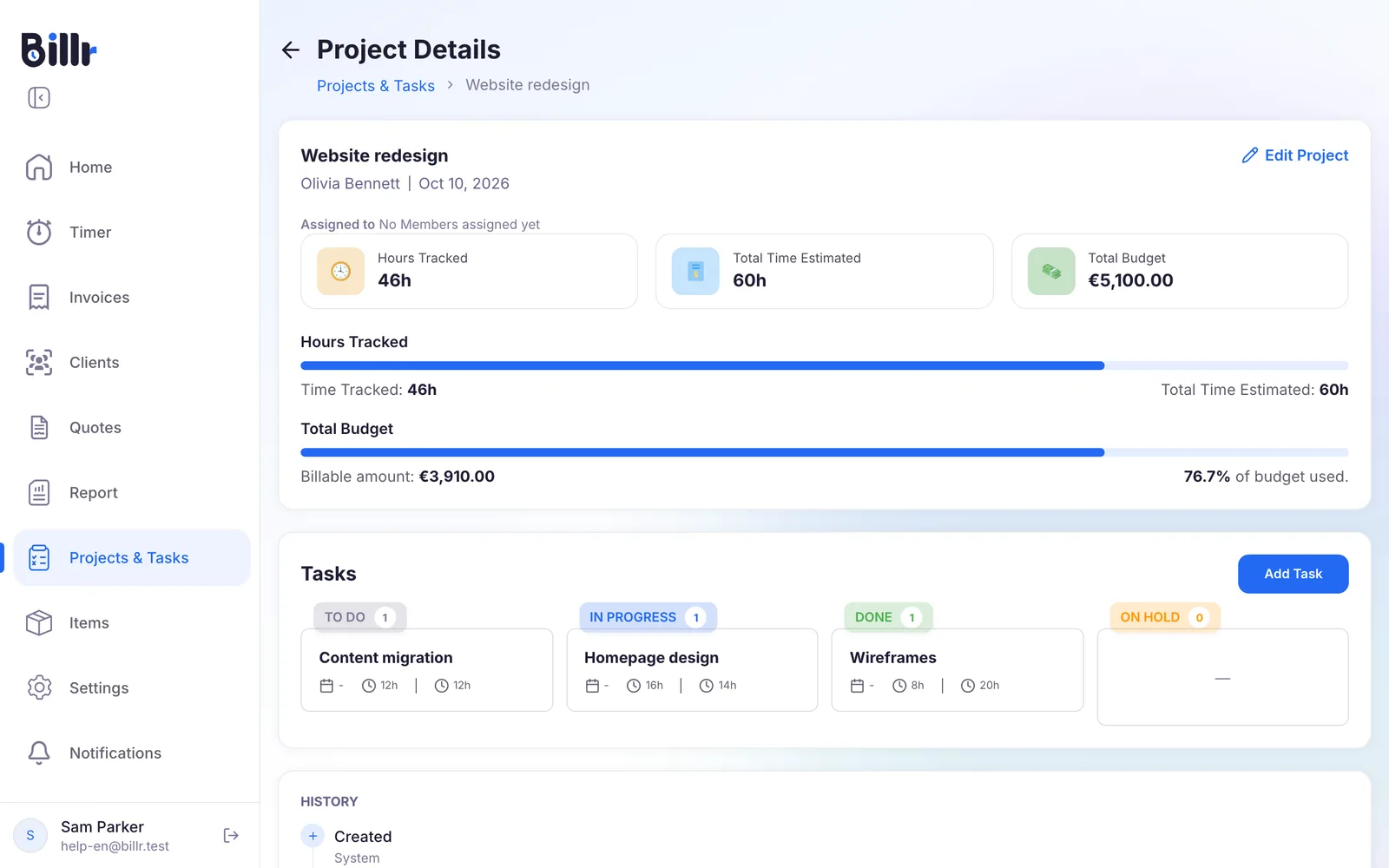
A client that seems to bring in little? Check the rate first. The Report adds up your billable hours per client and project.
Turn your hours into an invoice
On Time entry history, every client with time that has not been invoiced yet has a Create Invoice button. Choose it, then choose how the hours appear on the invoice: All Together, By Project, By Task & Project or Separate Lines.
You get a draft invoice with the lines already in it. Once you send it, those time entries count as invoiced. The rest of the steps are in Create and send invoices.
Frequently asked questions
How do I start and stop the timer?
Open the Timer tab and pick a client, and optionally a project and task. Without a client the app asks you to select one first.
Start Timer begins the session.
Pause Timer holds it if you are interrupted, and Resume Timer carries on.
Stop & Save writes the session to your time entry history with its notes, duration and billable amount.
Does the timer keep running when I close the app?
Yes. Billr does not count seconds while the screen is on; it stores the moment you started and works out the elapsed time whenever you come back. Locking your phone, switching apps or losing signal does not cost you any time. You can only have one timer running at a time, and a running timer shows on every screen so you cannot forget it.
How do I correct a time entry?
Go to Timer, View Log History, and tap the entry. Edit Time Entry lets you change the start time, duration, notes, client, project and task. Once an entry has been billed it is locked, and the app names the invoice it belongs to. If a teammate changed the same entry while your form was open, Billr asks whether to reload their version or overwrite it.
Can I add hours I forgot to track?
Yes. On the Timer screen switch from Timer to Manual.
Pick the client.
Choose the date and time the work started.
Enter the duration in hours and add your notes.
Save, and the entry lands in your time entry history next to the tracked ones, ready to be invoiced.
Which hourly rate does a time entry use?
Billr takes the project rate if the project has one, otherwise the client's default hourly rate, otherwise zero. Set the client rate under Clients in Default Hourly Rate, and the project rate on the project itself. The rate is stored with each entry, so raising a rate later does not rewrite what you already earned on older entries.
How do I turn tracked hours into an invoice?
Open Timer, View Log History. Every client with unbilled time shows a Create Invoice button. Billr then asks how the hours should appear on the invoice.
All Together, as one line.
By Project.
By Task & Project.
Separate Lines, one per entry.
Pick one and you get a draft invoice with the lines filled in. Once you send it, those entries are marked invoiced and can no longer be edited.
What counts as billable hours in the report?
A time entry counts as billable when its hourly rate is above zero. Hours you tracked on a client or project without a rate count in your total hours, but not as billable. Utilization is billable hours divided by total hours, and the effective rate is your billable amount divided by the hours worked. So if a client looks unprofitable, check the default hourly rate on that client or project first.