Create and send invoices
An invoice takes a few steps, with items from your list or with the time you tracked. Billr emails the PDF to your client and keeps track of whether it has been paid.
Updated
Create an invoice
- Choose New Invoice under Quick Actions on Home, or go to Invoices in the menu and choose Create Invoice.
- Pick the client. Not in the list yet? Create them right there with Add Client.
- Add lines with Add Item. Pick a saved item, or type a name, a quantity and a price yourself.
- Check the Invoice Date and the Due Date. Add a PO Number, a Client header, a Discount or a Note when you need one.
- Look at the Preview on the right: that is the PDF your client gets.
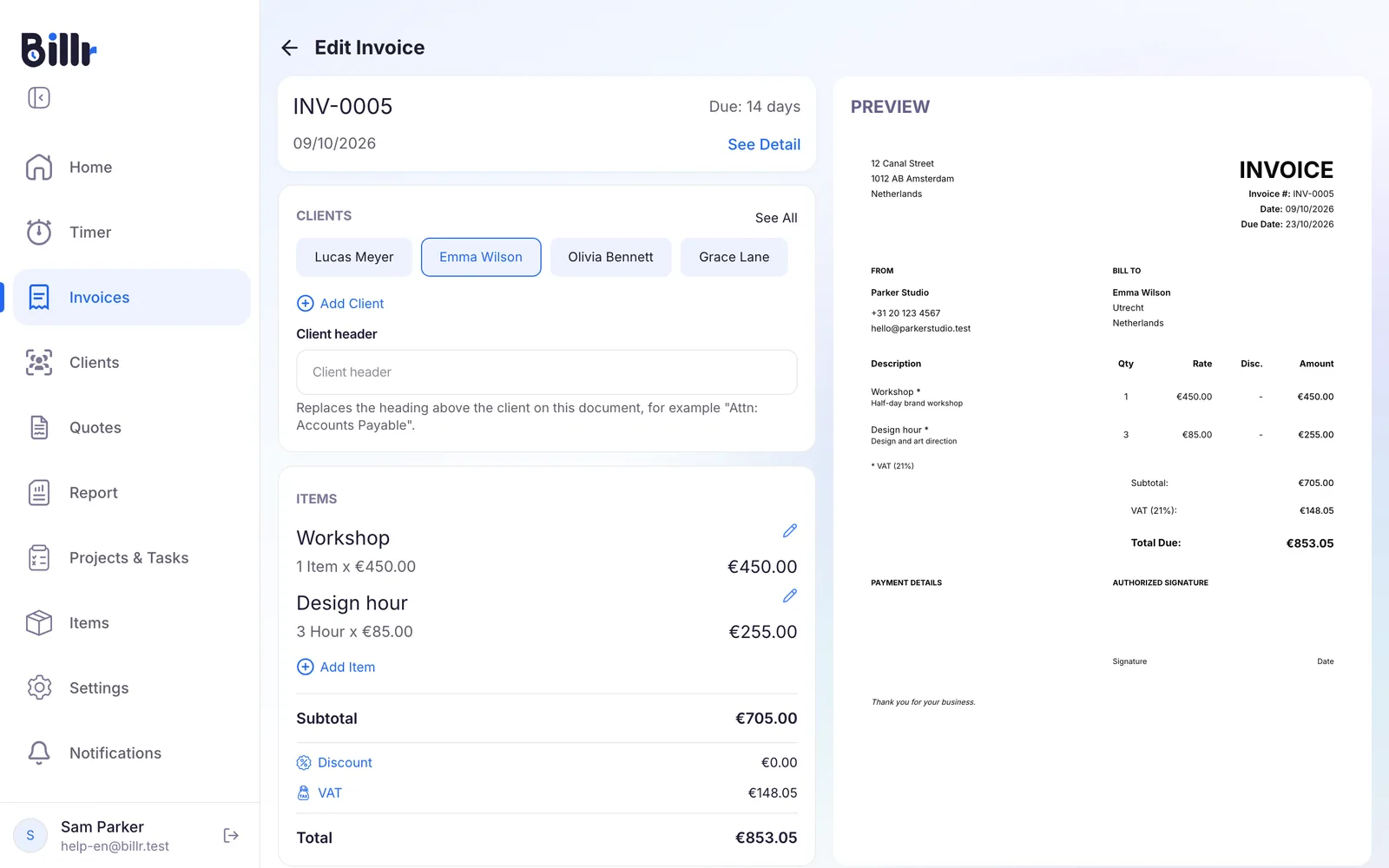
You don't have to finish an invoice in one go. Until you send it, it stays in your list as a Draft.
Billr fills in the invoice number for you: your prefix plus a four-digit counter, for example INV-0005. How to change the prefix is in Invoice layout, tax and currency.
Invoice your tracked time
If you worked with the timer, there is no need to type the hours again.
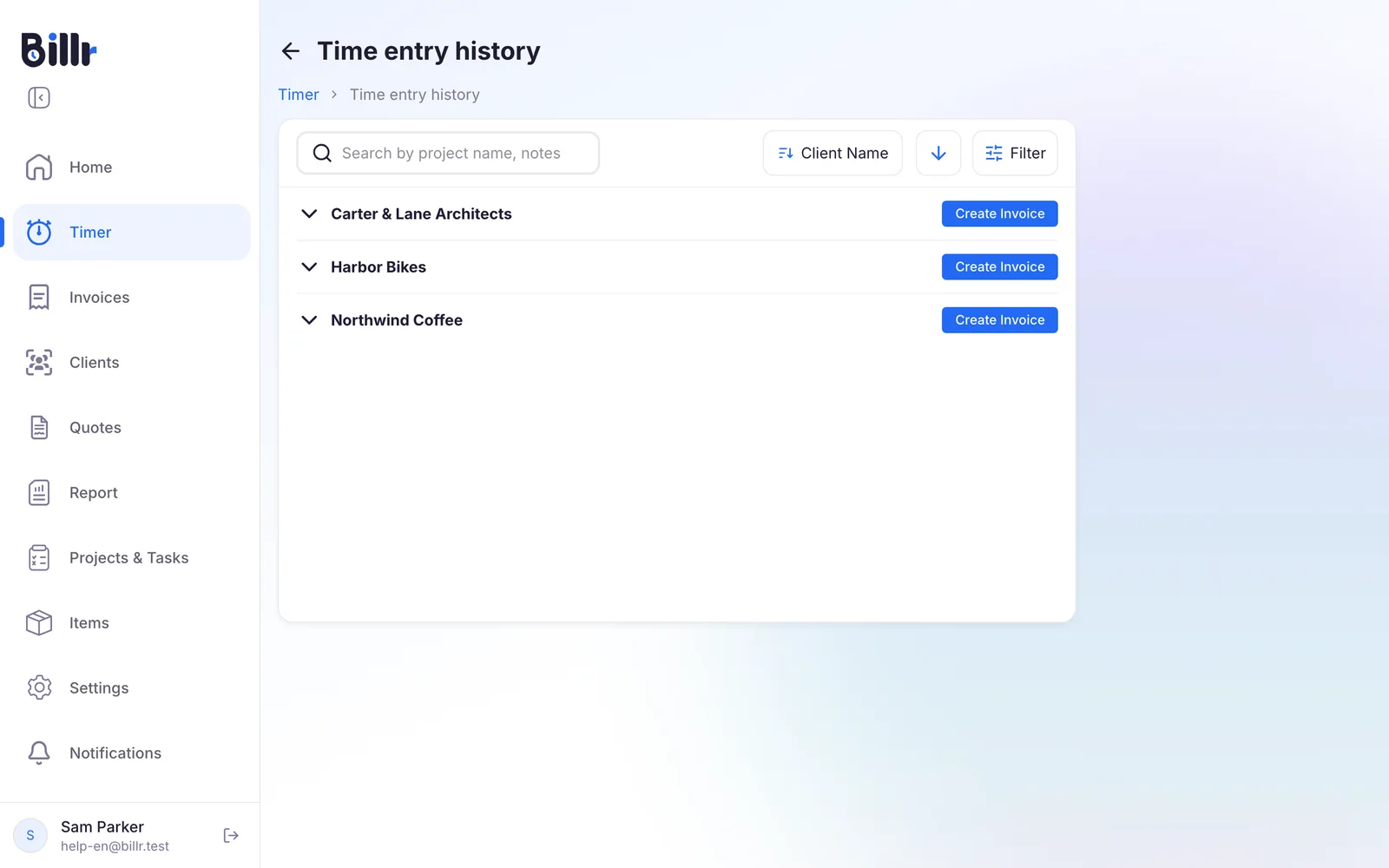
- Go to Timer and choose View Log History.
- Every client with time that has not been invoiced yet has a Create Invoice button. Choose it next to the client you want to invoice.
- Choose how the hours appear on the invoice: everything on one line, one line per project, per task and project, or one line per time entry.
You get a draft invoice with the lines already in it. As soon as you send it, those time entries count as invoiced and can no longer be edited.
Send the invoice
Choose Send Invoice. Billr emails the invoice as a PDF to the client's email address and sets the status to Unpaid.
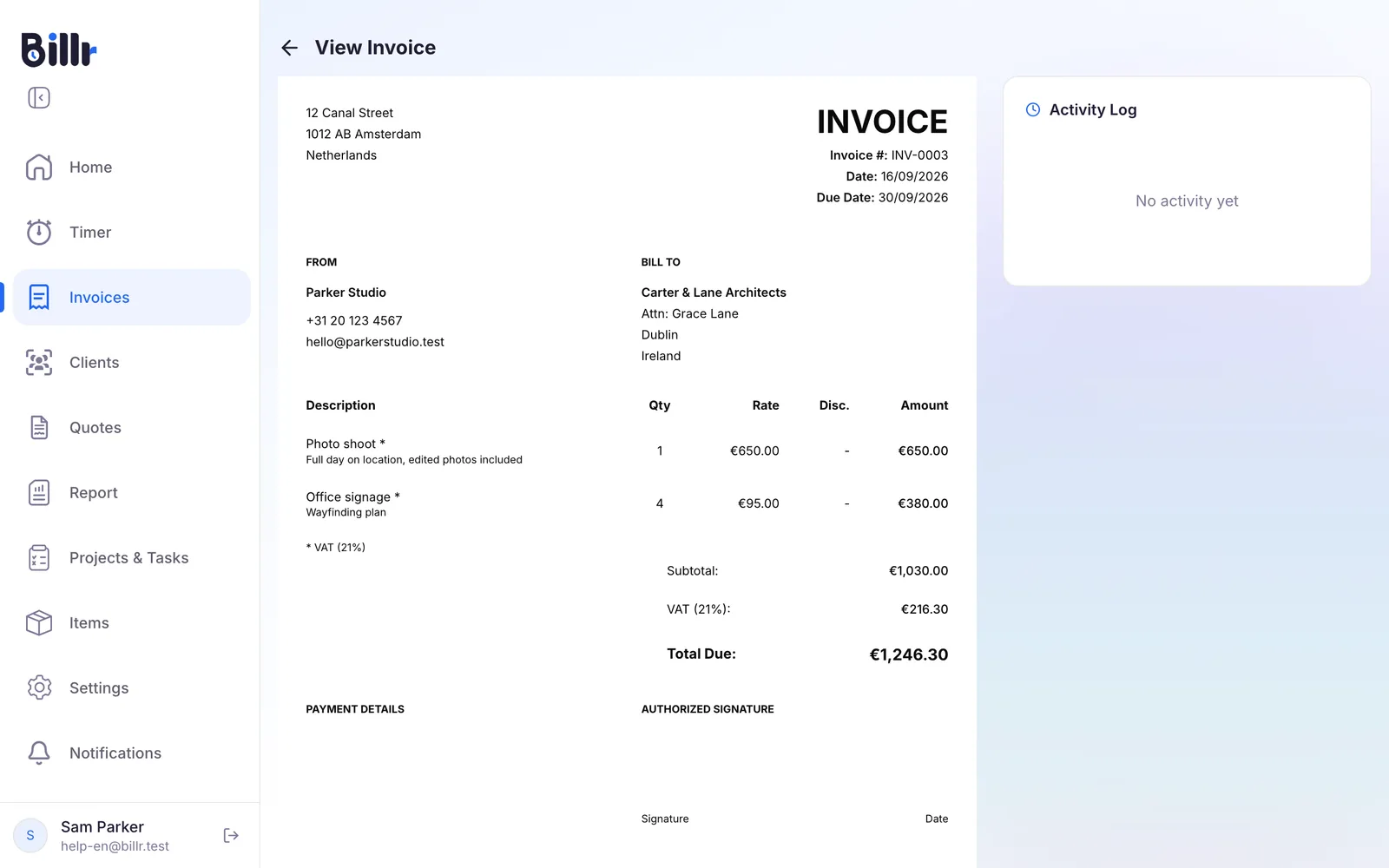
With online payments switched on, the email gets a pay button and your client can pay straight away by card or PayPal. The Activity Log next to the invoice shows when it was sent and when it was paid.
What the statuses mean
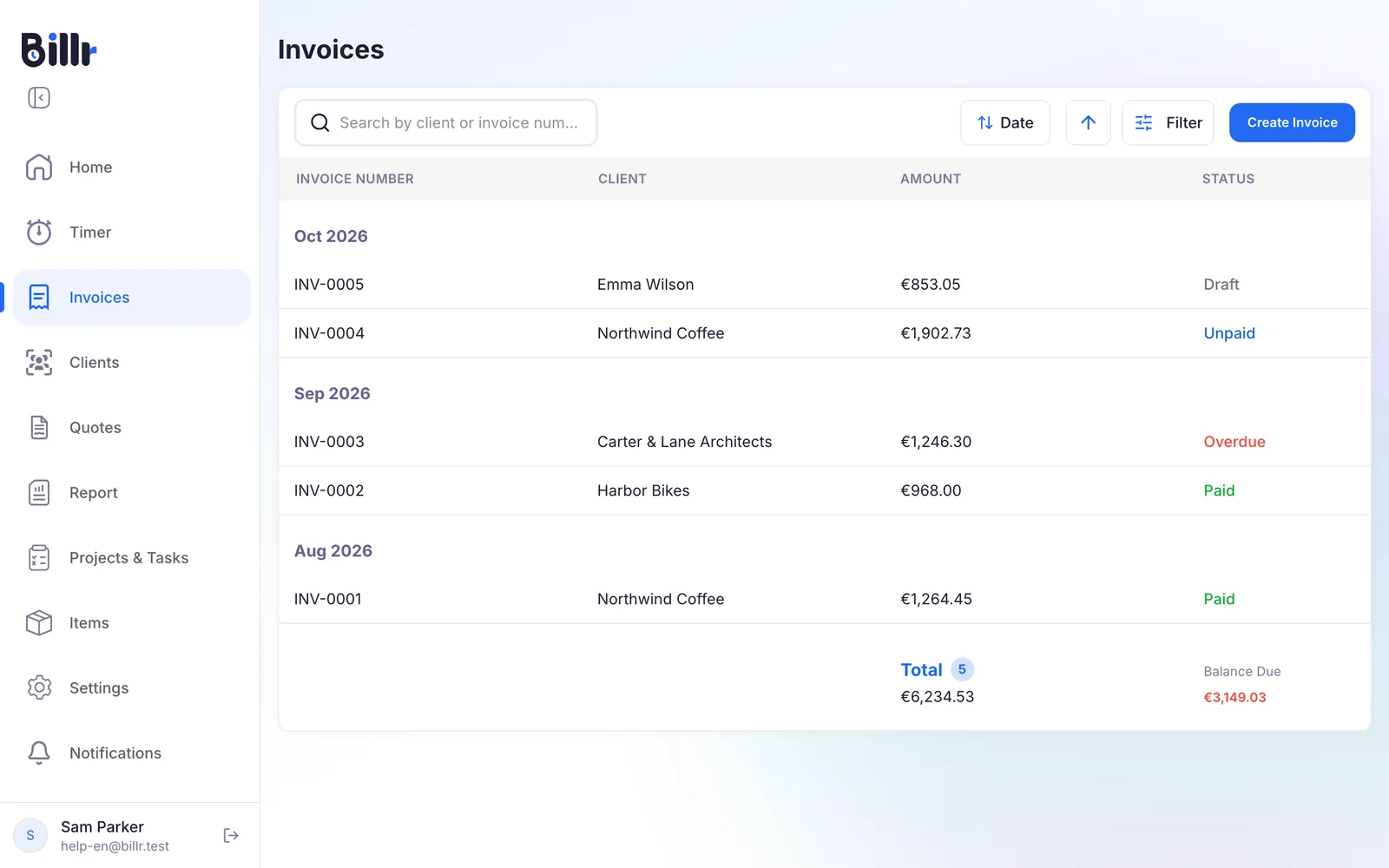
Invoices lists your invoices by month, each with its status, as in the image at the top of this page.
| Status | What it means |
|---|---|
| Draft | Not sent yet. You can still change everything. |
| Unpaid | Sent, and the due date has not passed. |
| Overdue | Sent, not paid, and the due date has passed. |
| Paid | The client paid, online or as you recorded it. |
| Cancelled | The invoice keeps its number in your records but no longer counts. |
At the bottom of the list you see the total and the outstanding amount of all unpaid invoices. To have Billr warn you about an overdue invoice, or remind your client for you, read Reminders and payment reminders.
Mark as paid, send again or cancel
- Mark as paid. Open the invoice and choose Mark as Paid. When your client pays online, Billr does this for you. A paid invoice is locked; to change it after all, choose Mark as Unpaid first.
- Send again. Choose Send Invoice once more. The activity log then shows that the invoice was sent again.
- Share the PDF another way. Under More Options you export the PDF or print it.
- Cancel or delete. Cancel Invoice keeps the invoice and its number in your records, and the payment link stops working. Deleting removes it from the list. For numbering without gaps, cancelling is usually the safer choice.
If an invoice does not arrive, first check the activity log to see whether it was sent, and check the client's email address. The frequently asked questions walk you through the rest.
Frequently asked questions
How do I create an invoice?
Tap Create Invoice and pick the client.
Add lines by choosing saved items or typing a name, quantity and price.
Set an invoice date and a due date, and if you need them a PO number, a client header, a discount and a note.
Preview shows the PDF exactly as the client gets it.
Save it as a draft or tap Send Invoice to mail it straight away.
How do I turn tracked hours into an invoice?
Open Timer, View Log History. Every client with unbilled time shows a Create Invoice button. Billr then asks how the hours should appear on the invoice.
All Together, as one line.
By Project.
By Task & Project.
Separate Lines, one per entry.
Pick one and you get a draft invoice with the lines filled in. Once you send it, those entries are marked invoiced and can no longer be edited.
Can I send an invoice again?
Yes. Open the invoice and tap Send Invoice again; the Activity Log then shows Invoice resent, with the date. If the client already has it and you only want the status to be right, use More Options, Mark as Sent. From the same menu you can export the PDF, download it as an image or print it, and send it through any channel you like.
How do I mark an invoice as paid?
Open the invoice and tap Mark as Paid. If the client pays online by card or PayPal, Billr does it for you as soon as the payment is confirmed, and the Activity Log records it. Marked paid means locked: to edit the invoice again, use Mark as Unpaid first. You can send the client a receipt from More Options, Send Payment Receipt.
What is the difference between cancelling and deleting an invoice?
Cancel Invoice keeps the invoice and its number in your books but marks it cancelled, and its online payment link stops working. Reactivate Invoice undoes that. Delete Invoice removes it from the list altogether. A paid invoice cannot be cancelled: mark it unpaid first or refund it. For your numbering, cancelling is usually the safer choice.
My client never got the invoice. What now?
Work through these four.
Open the invoice and check the Activity Log: Invoice sent means it left Billr.
Check the email address on the client.
Ask them to look in their spam folder, because the mail comes from billr.cloud.
Check Settings, More, Email Settings, where you choose who sends: Billr from the billr.cloud domain, or your own email app, in which case the mail sits in your own outbox.
Tap Send Invoice again to resend, or share the PDF through another channel.