Invoice layout, tax and currency
How your invoice looks is set once, in Settings, and applies to every invoice and quote you send. This guide covers the template, the colour and logo, the numbering, tax and currency.
Updated

Choose an invoice template and colour
- Go to Settings, Invoice Settings.
- On Templates, pick one of the four: Classic, Modern, Contemporary or Corporate. All four are in every plan.
- On Colors, pick one of the 14 preset colours, or choose Custom Color for your own.
- Save.
The choice applies to every invoice and quote from then on. If a colour is too light to read on the white PDF, Billr warns you and suggests a darker shade.
Add your logo and business details
Your logo, business name, address and contact details come from Settings, Business details. Choose Add Logo to upload your logo, and fill in the rest once.
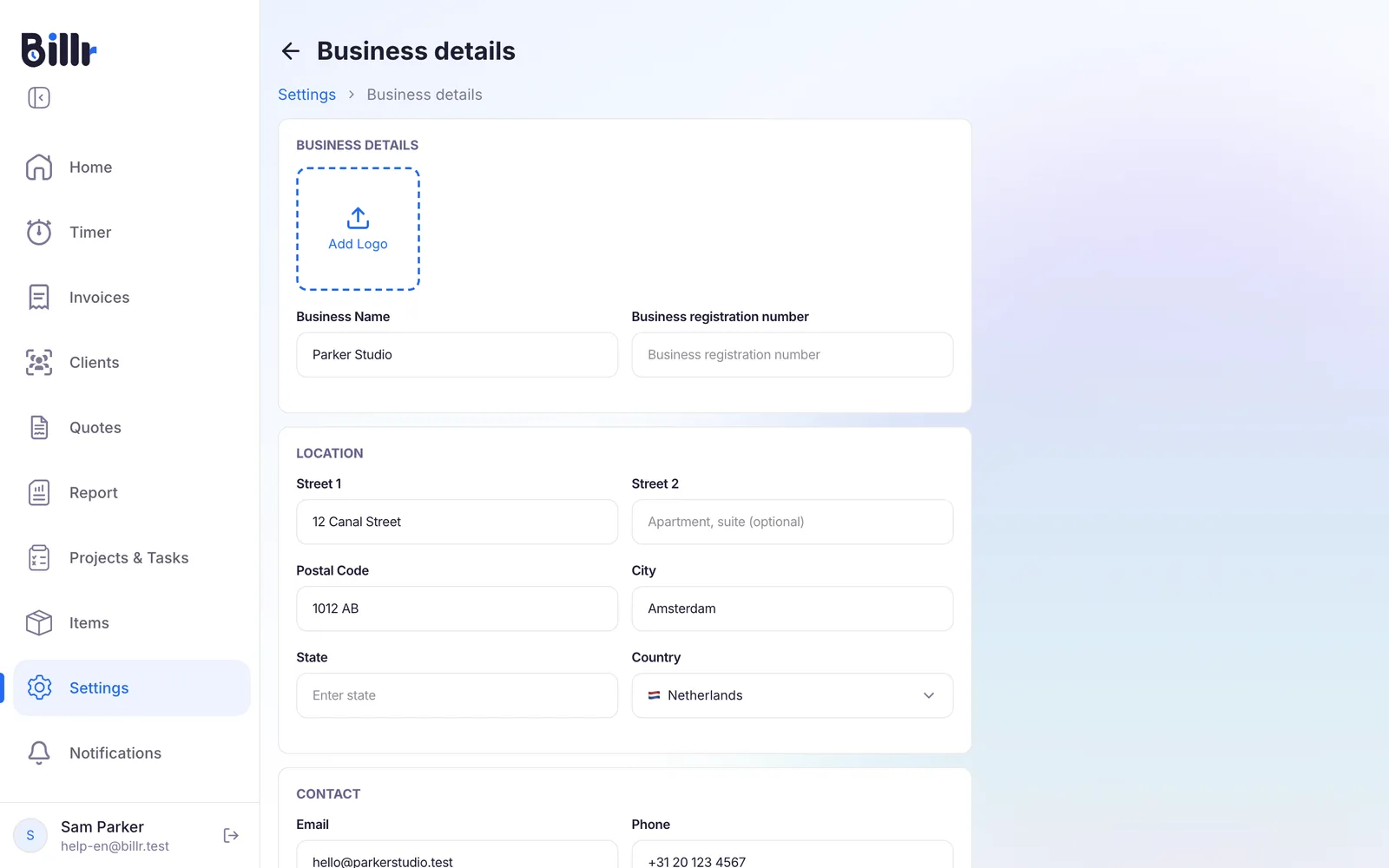
These details go on every invoice and quote you send. More about setting up Billr for the first time is in Getting started.
Numbering, date format and what the PDF shows
The Options tab under Invoice Settings holds the rest of the layout.
| Setting | What it does |
|---|---|
| Invoice Prefix | The letters before the invoice number, for example INV in INV-0005. The counter has four digits. |
| Quote Prefix | The same for quotes, QUO by default. |
| Default Validity (days) | How long a new quote stays valid. |
| Language | The language of the labels on the PDF and of the email your client gets. |
| Font Size | Small, medium or large text on the PDF. |
| Date Format | How dates appear on the PDF, in one of 6 formats. |
| Show quantity and unit price, Show Discount, Show Tax | Which columns the lines show. |
| Show tax details, Show signature | What appears under the total. |
Set up tax
Go to Settings, Tax and Currency.
- Under Calculation, choose Per Item or On Total.
- Under Label, type the name of the tax as your country calls it. That name appears on the invoice.
- Fill in the Rate (%).
- Do you have to hold back withholding tax? Switch on Active under Withholding Tax and fill in its own label and rate.
- Choose Save.
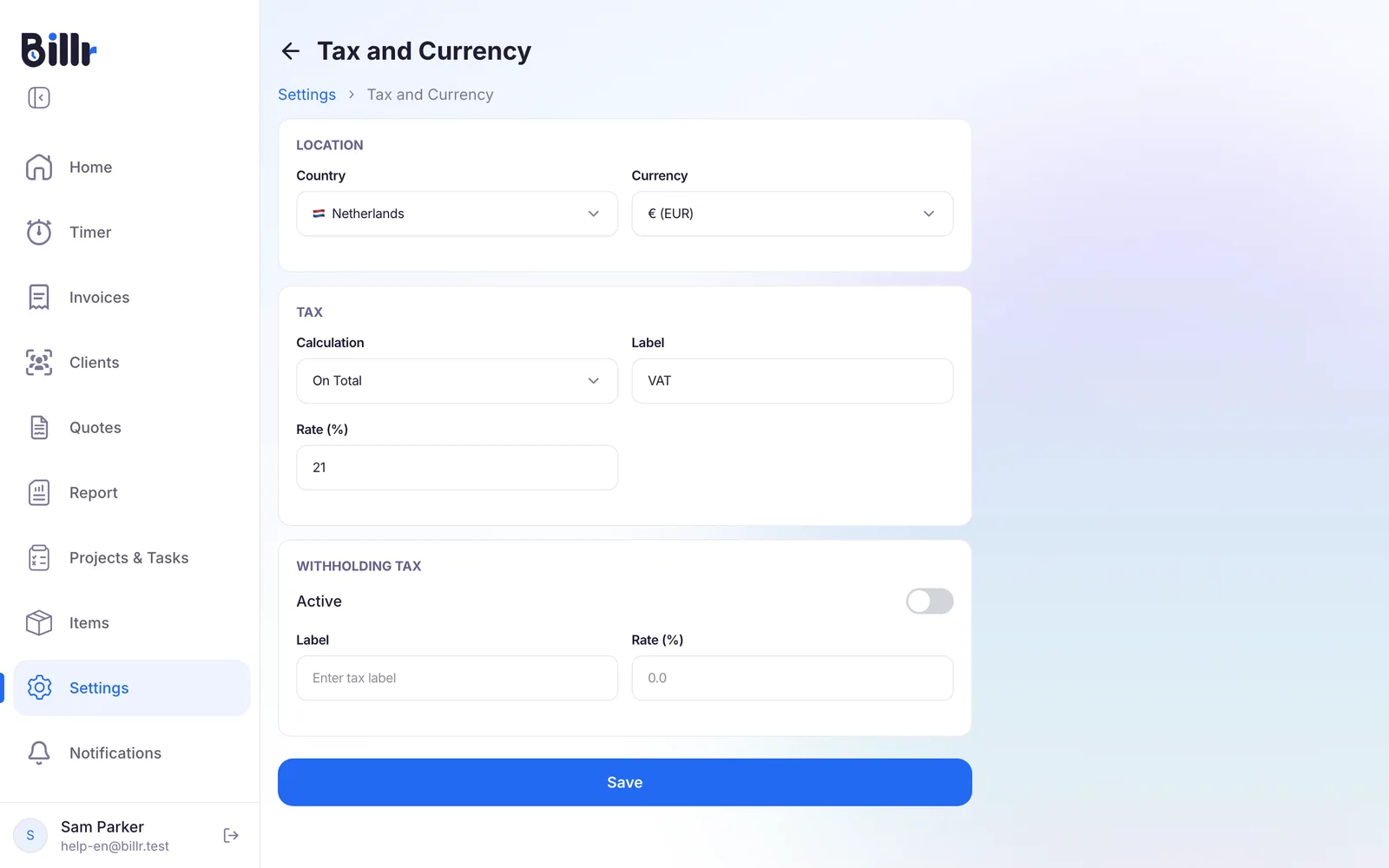
Billr uses one tax rate for your team. A line that should not carry tax gets its Taxable switch turned off when you add it to the invoice.
Choose your currency
On the same screen, Currency lets you choose from 60 currencies. The currency applies to your whole team and to every invoice, quote and report. Billr does not use a different currency per client or per invoice.
Set the currency before you send your first invoice, so your Report adds up in one currency. Ready to send? Go back to Create and send invoices.
Frequently asked questions
Which invoice templates can I choose?
There are four: Classic, Modern, Contemporary and Corporate. You pick one under Settings, Invoice Settings, Templates, and the preview shows what it looks like with your own logo and colour. The choice applies to every invoice and quote you send from then on. All four are included in every plan.
How do I put my logo and my colour on the invoice?
Both live in Settings, in two different places.
Settings, Business details, Add Logo holds your logo, company name, address and contact details.
Settings, Invoice Settings, Colors holds the colour: 14 preset colours or a custom one of your own.
Billr warns you when a colour is too light to read on the white PDF. Under Options you also set the font size and the date format.
How does Billr number invoices?
Each invoice gets your prefix plus a four digit counter, for example INV-0001, and the counter goes up per team. Change the prefix under Settings, Invoice Settings, Options. You can also type a number yourself on the invoice; if that number is already used, Billr refuses it and asks for another one, so you never get two invoices with the same number.
How do I put tax on my invoices?
Go to Settings, Tax and Currency. Set your tax label, for example VAT, and the rate, and choose whether it is calculated per item or on the total. If you need it, switch on withholding tax with its own label and rate. Billr uses one tax rate for your team, and you can mark an individual line as not taxable when you add it. Under Invoice Settings, Options you decide whether the tax details show on the PDF.
How do I change my currency?
Settings, Tax and Currency, Currency, where you can choose from 60 currencies. The currency applies to your whole team and to every invoice, quote and report; Billr does not do a separate currency per client or per invoice. If you switch currency after invoices have been paid, the report leaves those older amounts out of the totals and says so, because it does not convert between currencies.
How do I change the language?
Settings, App Settings, Language. Billr speaks English, Spanish, French, German, Italian, Dutch, Portuguese, Polish, Hindi and Turkish. The choice follows your account, so your other devices switch along with it. The language works offline too, because all ten are built into the app.