Save items for invoices and quotes
An item is a service or product you save once and reuse. Save items in Billr for the work you invoice often, and you no longer type the same name and price on every invoice or quote.
Updated

Add an item
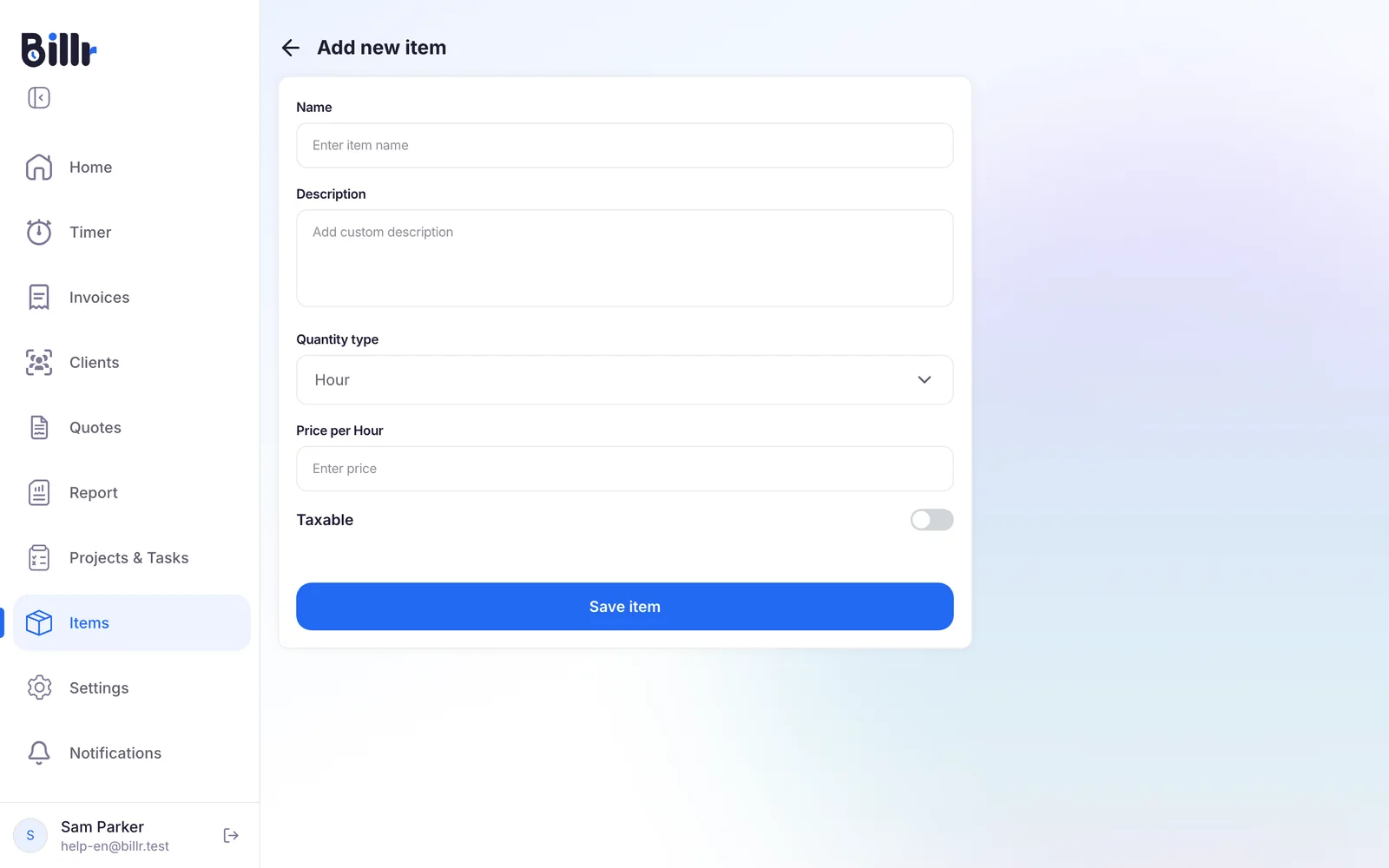
- Go to Items and choose Add Item.
- Fill in the Name and the Description. The description is what your client reads on the invoice.
- Pick the Quantity type: Hour, Day or Item.
- Enter the price. The field follows your choice: Price per Hour, Price per Day or Price per Item.
- Switch on Taxable if tax applies to this item.
- Choose Save item.
Choose the right quantity type
The quantity type decides what your client pays per unit.
| Quantity type | Use it for | Example |
|---|---|---|
| Hour | Work you charge by the hour | Design work at a fixed hourly price |
| Day | Work you charge by the day | A full day on location |
| Item | A fixed price per piece | A workshop, or a month of hosting |
On the invoice you then only fill in the quantity: 3 hours, 2 days or 1 item.
Add an item to an invoice or quote
- In an invoice or quote, choose Add Item.
- Choose the search icon in the Name field and pick a saved item.
- Billr fills in the name, description, quantity type, price and the Taxable switch. Set the quantity and change anything you need for this one line.
- Save the line.
The line is a copy. Changing it on one invoice leaves your saved item as it was, and changing the saved item later does not rewrite invoices you already made. The rest of the invoice is explained in Create and send invoices, and a quote works the same way, see Send a quote.
Find, edit or delete an item
Items lists every saved item with its Quantity type, Price and Taxable setting.
- Search and sort. Search by item name, or sort by name, Price, Total Invoice or Revenue.
- Revenue shows how much you have invoiced with this item. A dash means Billr has no invoice line it can link to the item yet.
- Edit. Choose an item in the list to open it, change it and choose Save item.
- Delete. Open the item and choose Delete Item. This cannot be undone, and the item does not go to the Trash. Invoices that already use it keep their lines.
Only lines marked Taxable get tax. Your tax rate and its name are set under Tax and Currency, see Invoice layout, tax and currency.