Import, export and change in bulk
Switching from another tool, or raising all your prices at once? Billr reads your clients and items from a CSV file, exports them the same way, and updates what you changed when you import the file again.
Updated

Where to find it
Go to Settings, More Options and choose Import and export. Importing is something you do now and then, so it is here and not in the lists you use every day. Team members can use it too.
Bring in clients or items from another tool
- Export your clients or your price list from the other tool, or save your spreadsheet as CSV.
- In Billr, choose Import clients from CSV or Import items from CSV and pick the file.
- Billr shows what it found before it saves anything: how many are new, which lines it left out and why, and which columns it did not use.
- Choose the button at the bottom to save.
The first line of the file names the columns. Billr reads the usual names in its ten languages, so Name, Naam or Nom all work, with commas or semicolons. For items, Name is required; Description, Unit, Price and Taxable are optional. A unit can be written as hour, day or item, also in your own language. For clients, a name or a company is required.
A client or item you already have is not added twice. Billr recognises an item by its name, and a client by its name and first email address.
Picked the wrong file? A list of clients under Import items from CSV, or the other way round, is refused: Billr says what kind of list it is and imports nothing.
Change many prices at once
Raising your rates for the new year, or correcting a whole price list? Do it in a spreadsheet instead of item by item.
- Choose Export items as CSV. You get a file with one line per item: ID, Name, Description, Unit, Price, Taxable and HSN/SAC.
- Open the file in Excel, Numbers or Google Sheets and change the prices. You can also rename an item, change its description, or add a line for a new item at the bottom.
- Save it as CSV again.
- Choose Import items from CSV and pick the file. Billr now shows how many items are new, how many are updated and how many are unchanged.
- Choose the button at the bottom, for example Save 4 changes.
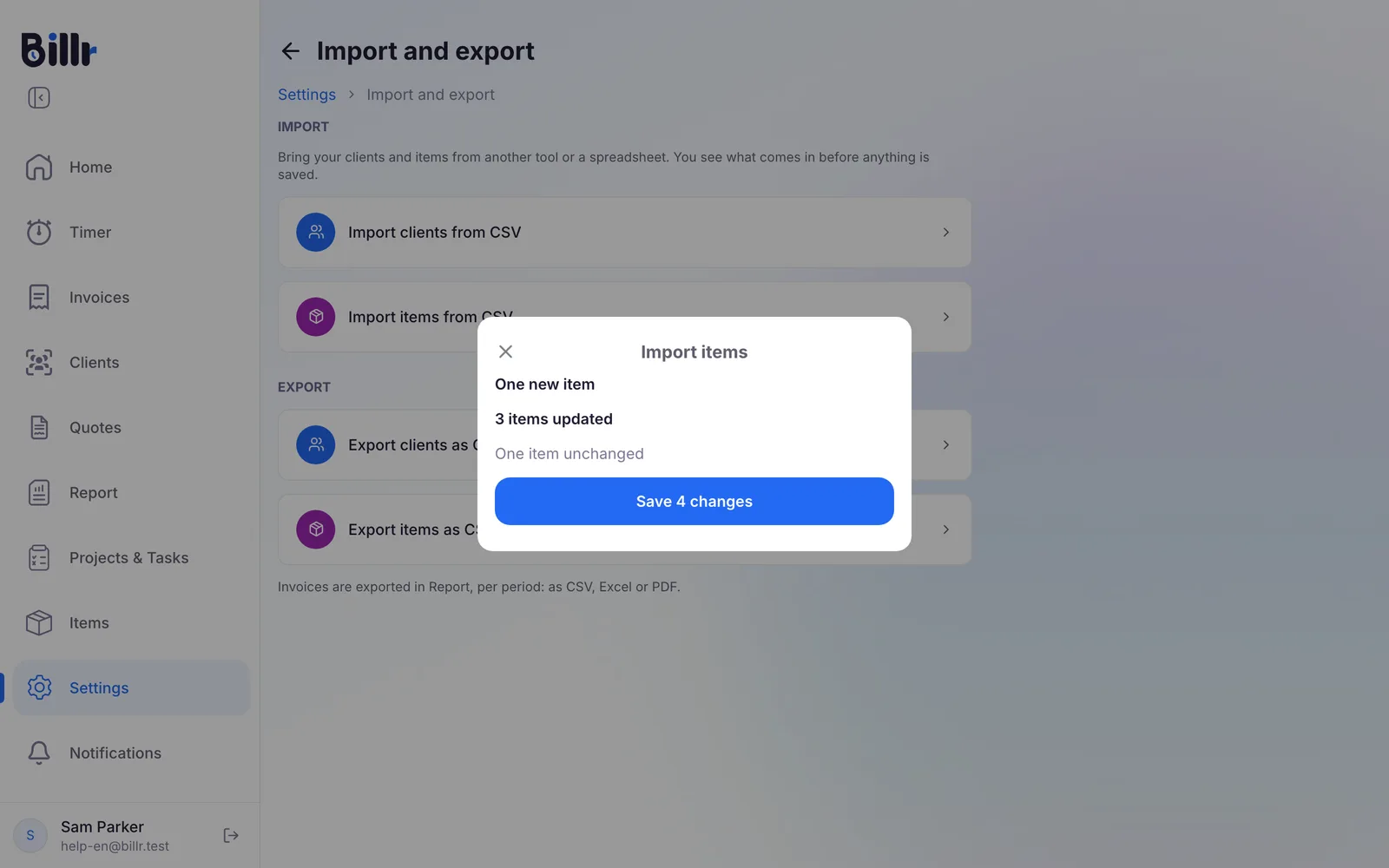
The ID column is how Billr finds each item back, even after you renamed it. Leave it as it is. A line without an ID is matched by name, and a name Billr does not know becomes a new item.
Change the details of many clients at once
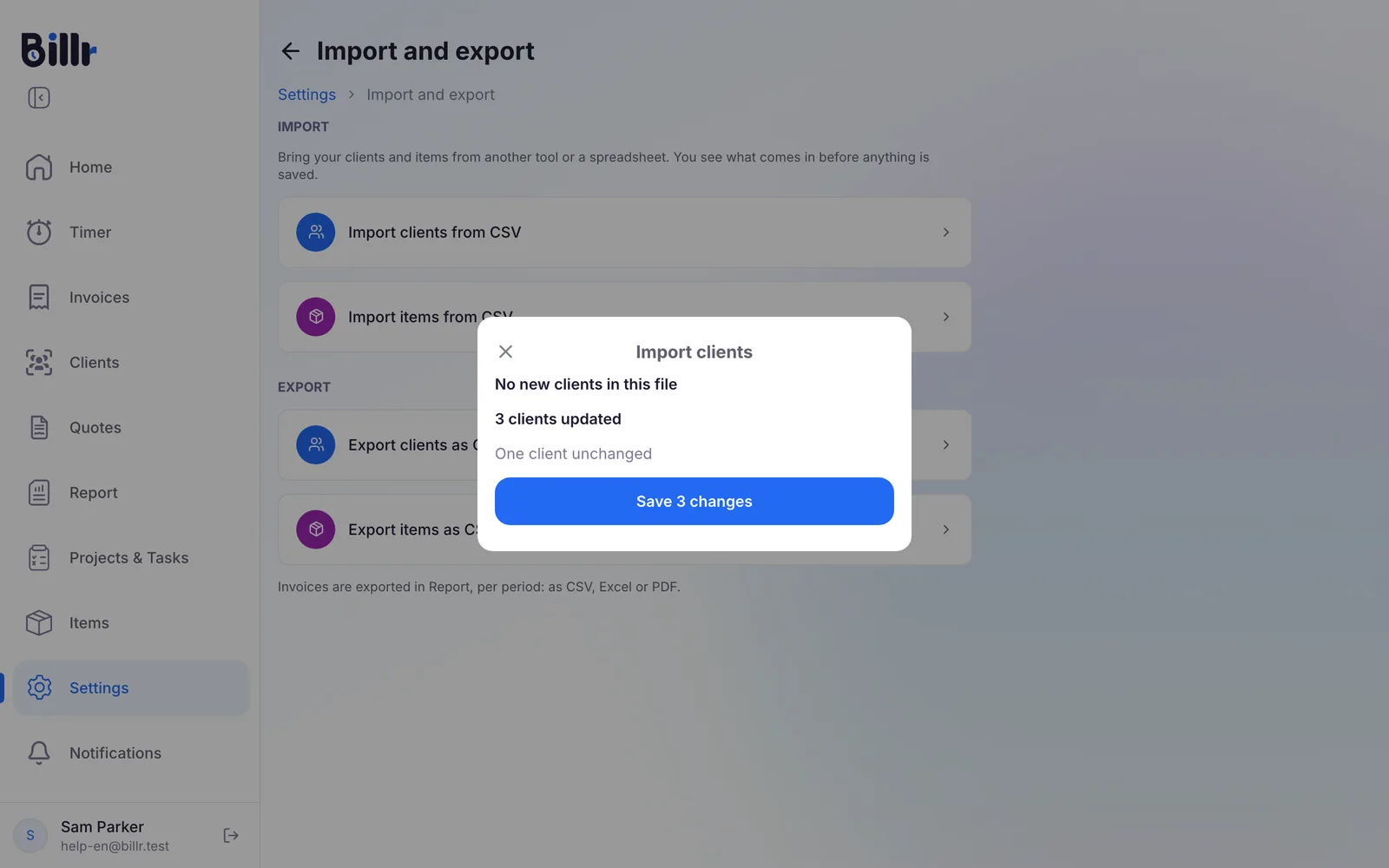
Clients work the same way. Choose Export clients as CSV, change addresses, tax IDs or hourly rates in the spreadsheet, and import the file with Import clients from CSV. Billr updates the clients you changed and leaves the rest alone.
What changes and what stays
- Only what is in the file changes. A column you delete, or a cell you leave empty, leaves that field as it is. A file with only Name and Price changes prices and nothing else.
- Invoices and quotes you already made do not change. A line on an invoice is a copy of the item, see Save items for invoices and quotes.
- Nothing is deleted. An item or client you remove from the file stays in Billr. Delete it in the list if you no longer need it.
- A line twice in the file is used once; the second one is left out and Billr says so.
- What a spreadsheet rewrites is not a change. Numbers and Excel like to turn 00184 into 184, drop the 0 at the start of a phone number or write a tax ID as a number. Billr sees that the value is the same and leaves the client as it was, so only what you really changed counts.
Billr writes the CSV the way a spreadsheet on your device expects it. Where a decimal is written with a comma, as in 49,95, the columns are split by semicolons; elsewhere by commas, with 49.95. That follows your phone's or computer's region, not the language of Billr, so the file opens in Excel or Numbers with every column in its place. When you import, Billr reads both, so 1.250,50 and 1,250.50 are the same price.
Invoices are exported in the Report, per period: as CSV, Excel or PDF.
Frequently asked questions
Can I import my clients from another tool?
Yes. Export your clients from the other tool as a CSV file, or save your spreadsheet as CSV. In Billr, go to Settings, More Options, Import and export and choose Import clients from CSV. Billr reads the usual column names in ten languages and shows how many clients are new, which lines it leaves out and which columns it does not use, before anything is saved. Only a name or a company is required. A client you already have, with the same name and first email address, is not added twice.
Can I import my price list or items?
Yes. Save your price list as a CSV file with a column for the name, and if you like the description, unit, price and whether it is taxable. Go to Settings, More Options, Import and export and choose Import items from CSV. Billr shows what it found before anything is saved. A unit can be written as hour, day or item, also in your own language, and prices with a comma or a period both work. An item you already have, with the same name, is not added twice.
How do I change the prices of many items at once?
Do it in a spreadsheet. Go to Settings, More Options, Import and export and choose Export items as CSV. Open the file in Excel, Numbers or Google Sheets, change the prices, save it as CSV and import it again with Import items from CSV. Billr shows how many items are new, updated and unchanged, and saves only when you choose the button.
Leave the ID column as it is: that is how Billr finds each item back, even after a rename. Only what is in the file changes; an empty cell leaves that field as it is. Invoices and quotes you already made keep their prices.
Can I change the details of many clients at once?
Yes. Go to Settings, More Options, Import and export and choose Export clients as CSV. Change addresses, tax IDs, hourly rates or other details in a spreadsheet, save the file as CSV and import it with Import clients from CSV. Billr updates the clients you changed and leaves the rest alone. Keep the ID column: it is how Billr finds each client back. An empty cell changes nothing, and a client you remove from the file is not deleted.
Can I export my clients and items?
Yes, as a CSV file that opens in Excel, Numbers or Google Sheets. Go to Settings, More Options, Import and export and choose Export clients as CSV or Export items as CSV. The file follows your phone's region: where decimals are written with a comma, it uses a semicolon between columns and a decimal comma, so Excel opens it in the right columns. Export works in every plan, also for team members. Invoices are exported in Report, per period.
Excel puts my CSV in one column, or Billr refuses my file. What now?
One column in Excel: export the file again from Billr. The export follows your phone's region, so in a region that writes 49,95 it uses a semicolon between columns and Excel splits them. When you import, Billr reads semicolons and commas, and decimal commas and points.
Billr says the file is the wrong kind: you chose a list of items under Import clients, or the other way round. Billr then imports nothing. Choose the right file, or use the other import.
Keep the ID column when you import a file you exported: with it Billr updates your clients or items instead of adding them again. A spreadsheet that rewrites a phone number or tax ID, for example by dropping a leading zero, does not count as a change.