All settings at a glance
Settings is where you set up Billr for your business, your invoices and yourself. This page shows what is under each part and where to read more.
Updated
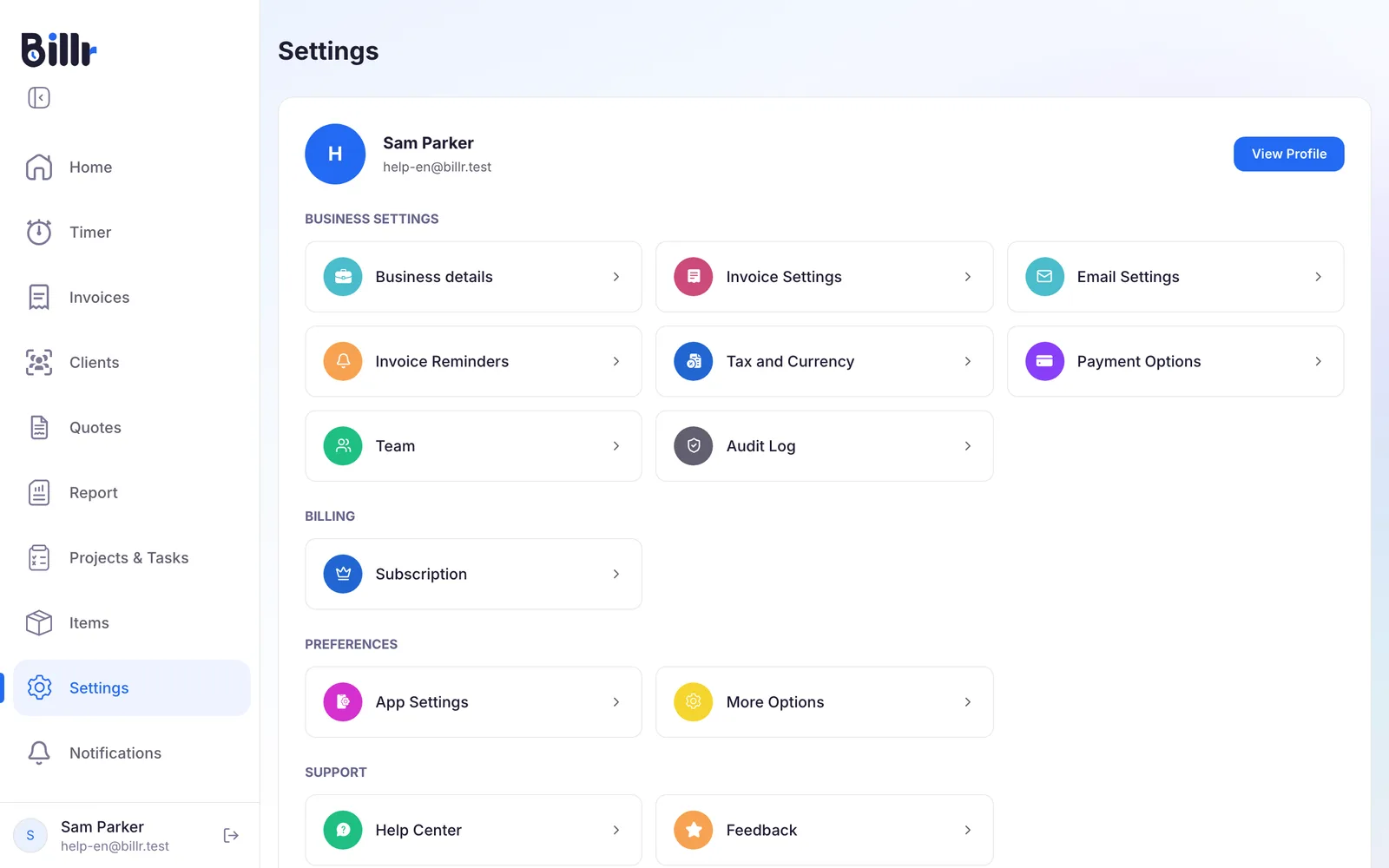
Where to find the settings
Choose Settings in the menu. At the top is your name with View Profile; there you change your name, email address, password and time format, as described in Your Billr account and privacy. Below it are four groups: Business Settings, Billing, Preferences and Support.
What you see depends on your role in the team. The Owner sees everything. An Admin sees everything except the Audit Log. A Member sees only Tax and Currency under Business Settings, and no Subscription.
Business Settings
| Part | What you set there | Read more |
|---|---|---|
| Business details | Your logo, business name, registration number, address and contact details, as they appear on your invoices and quotes | Get started with Billr |
| Invoice Settings | The template, colour and options of your invoices and quotes, such as the number prefix and how long a quote stays valid by default | Invoice layout, tax and currency |
| Email Settings | Whether invoices go from your own email app or through Billr from the billr.cloud domain | Create and send invoices |
| Invoice Reminders | A daily reminder about overdue invoices for you and your team, and payment reminders to your clients | Reminders and payment reminders |
| Tax and Currency | Your country, your currency, your tax rate with your own label, and withholding tax if you need it | Invoice layout, tax and currency |
| Payment Options | Stripe and PayPal for online payments, and bank transfer and a payment QR code on the invoice | Get paid online with Stripe and PayPal |
| Team | Invite team members, choose their role and set who reports to which Admin. Inviting starts at Crew | Work together in a team |
| Audit Log | Who changed what and when. Owner only, from Crew up | Work together in a team |
Billing
Subscription shows your team's plan, and it is where you upgrade or downgrade. How that works and where to cancel is in Choose, change or cancel your plan.
Preferences
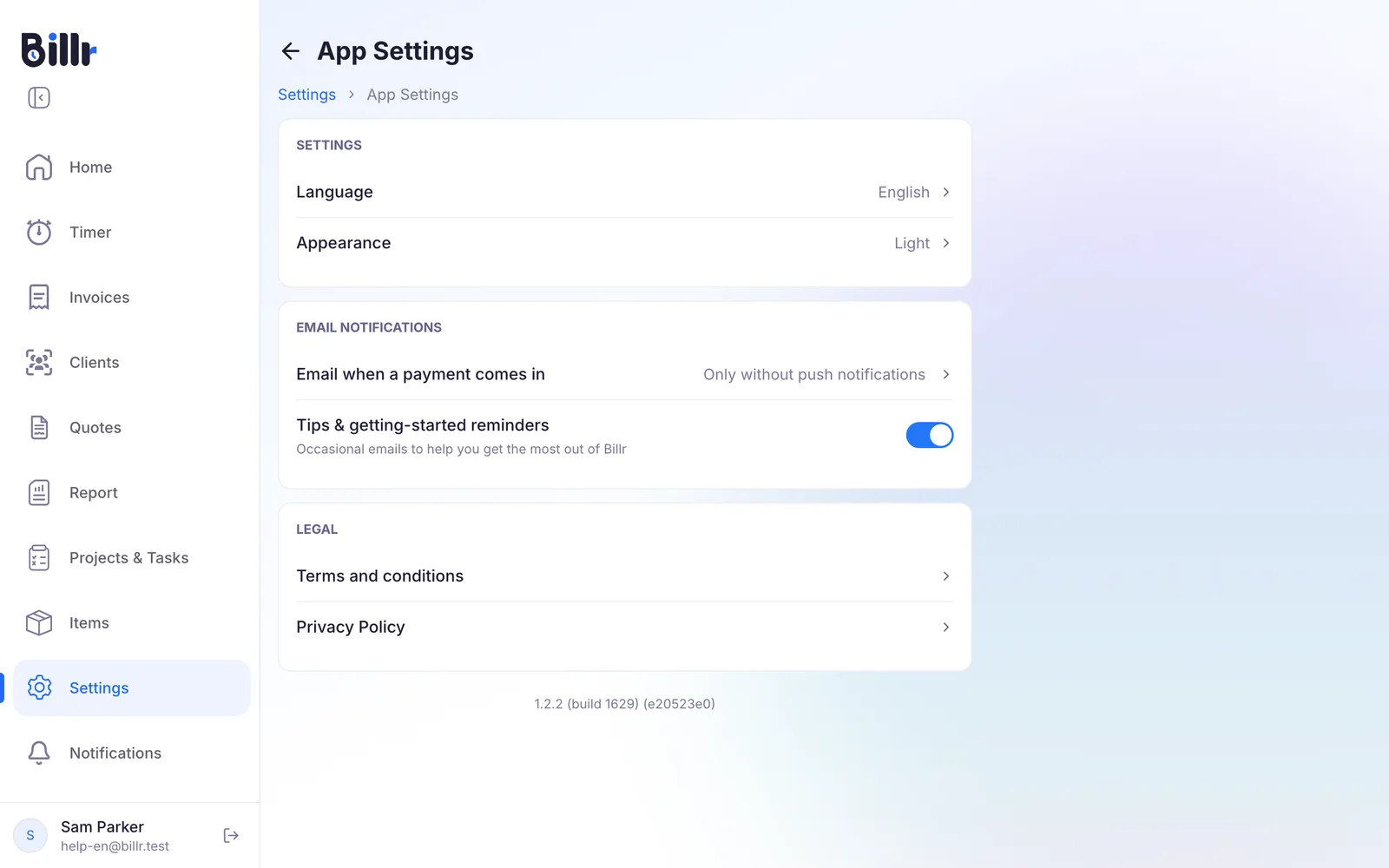
App Settings are about you, not the team: the language of Billr, light or dark, and which emails you want from Billr.
Under More Options you find three parts. Task Statuses and Client Tags are for the Owner only; Customize lets you make your own, see Track projects and tasks and Manage your clients. Everyone sees the Trash: there you restore deleted clients, projects, tasks and invoices for 21 days.
Support
- Help Center opens an assistant in the app that answers your questions, with the same answers as the frequently asked questions. If the assistant can't help, you open a ticket for a person under My Tickets.
- Feedback opens a page where you leave an idea or a wish for Billr.
Frequently asked questions
How do I change the language?
Settings, App Settings, Language. Billr speaks English, Spanish, French, German, Italian, Dutch, Portuguese, Polish, Hindi and Turkish. The choice follows your account, so your other devices switch along with it. The language works offline too, because all ten are built into the app.
How do I change my currency?
Settings, Tax and Currency, Currency, where you can choose from 60 currencies. The currency applies to your whole team and to every invoice, quote and report; Billr does not do a separate currency per client or per invoice. If you switch currency after invoices have been paid, the report leaves those older amounts out of the totals and says so, because it does not convert between currencies.